What you can do with AISLAND
AISLAND is one Windows app for creative projects. These are the jobs it handles today.
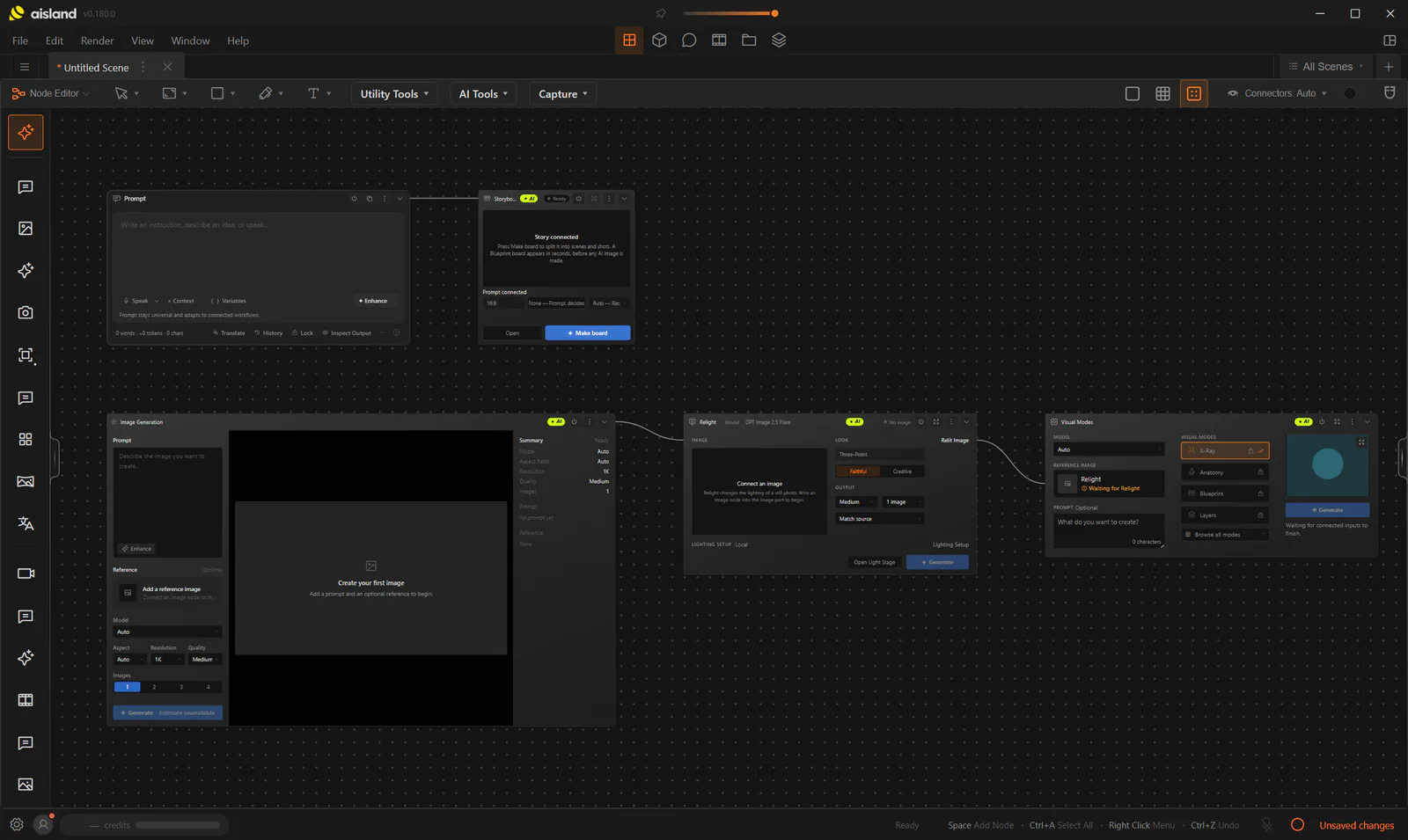
Node-based creative workflows
Build a project as a chain of tools on one canvas. Each node's output feeds the next, so you can change one step without exporting and re-importing files.
- A node canvas with wired inputs and outputs
- Quick Add to place any tool
- Workflow Lens to show the tools for AI, VFX, 3D, Media, Audio or General work
- Split the workspace into two to four panes
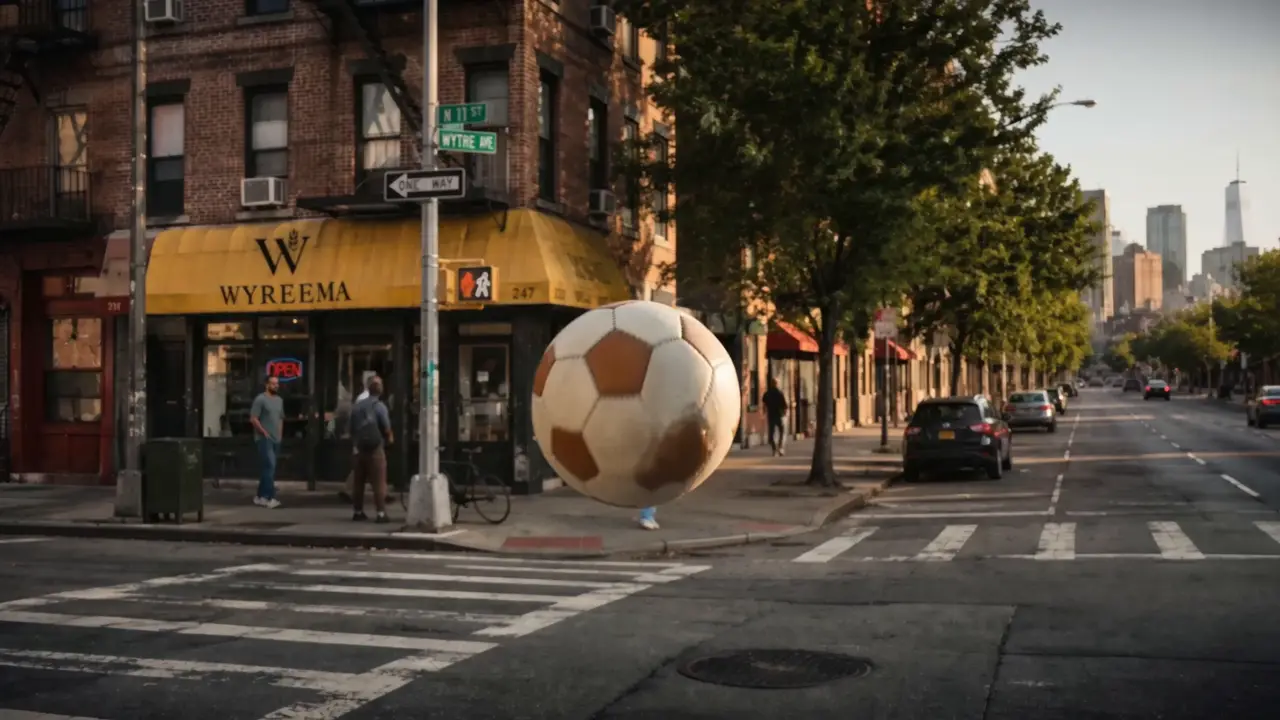
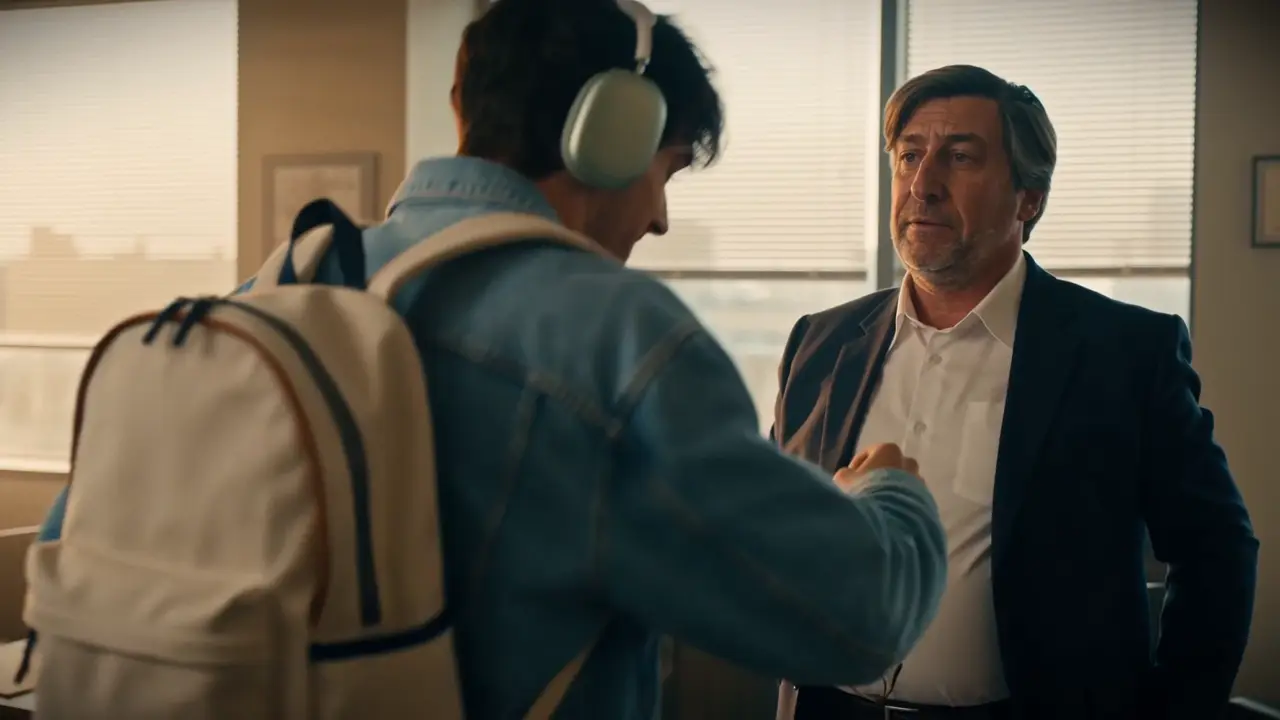
AI films, from storyboard to final cut
Plan a film as a storyboard, direct it shot by shot, then add voices and cut it, all in one project.
- Storyboard: a story becomes shots, then pictures that keep the same face
- Director: takes, framing and shots that continue from the last frame
- Lip Sync and Character Swap
- Video Edit: an AI-planned cut you can finish by hand
Voices, dubbing and music
Turn a script into speech, give a video a new voice with matching lips, and make a song for it.
- Voice Generation: a script to speech, in many languages
- Lip Sync: a video and a new voice to matching lips
- Song Generator: lyrics and a style to a song
- Dictation: speak into any text field
Fashion and product visuals
Go from one look or one product to a full set of pictures for a shop or a catalogue.
- Character / Product Sheet: one subject from several angles
- Extract Parts: one look into separate product photos
- Variation and Colourway: new designs and colours of a part
- Restyle on Model and Catalog Shot
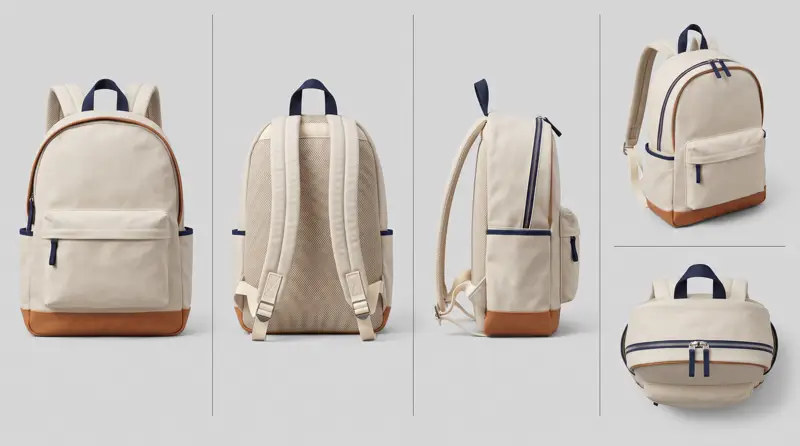
AI image workflows with one account
Generate and edit images with leading AI models from one account and one credit balance, with no API keys to manage.
- Image Generation with a model picker
- Character / Product Sheet, Visual Modes and Mask Edit
- Relight (beta)
- Image to Prompt and Prompt Presets
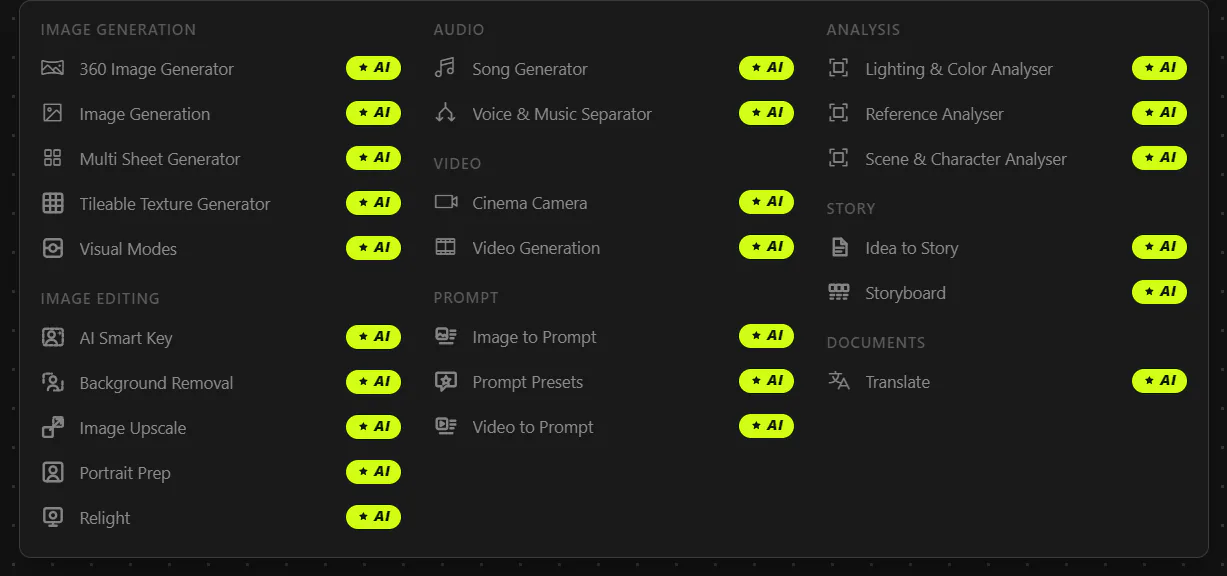
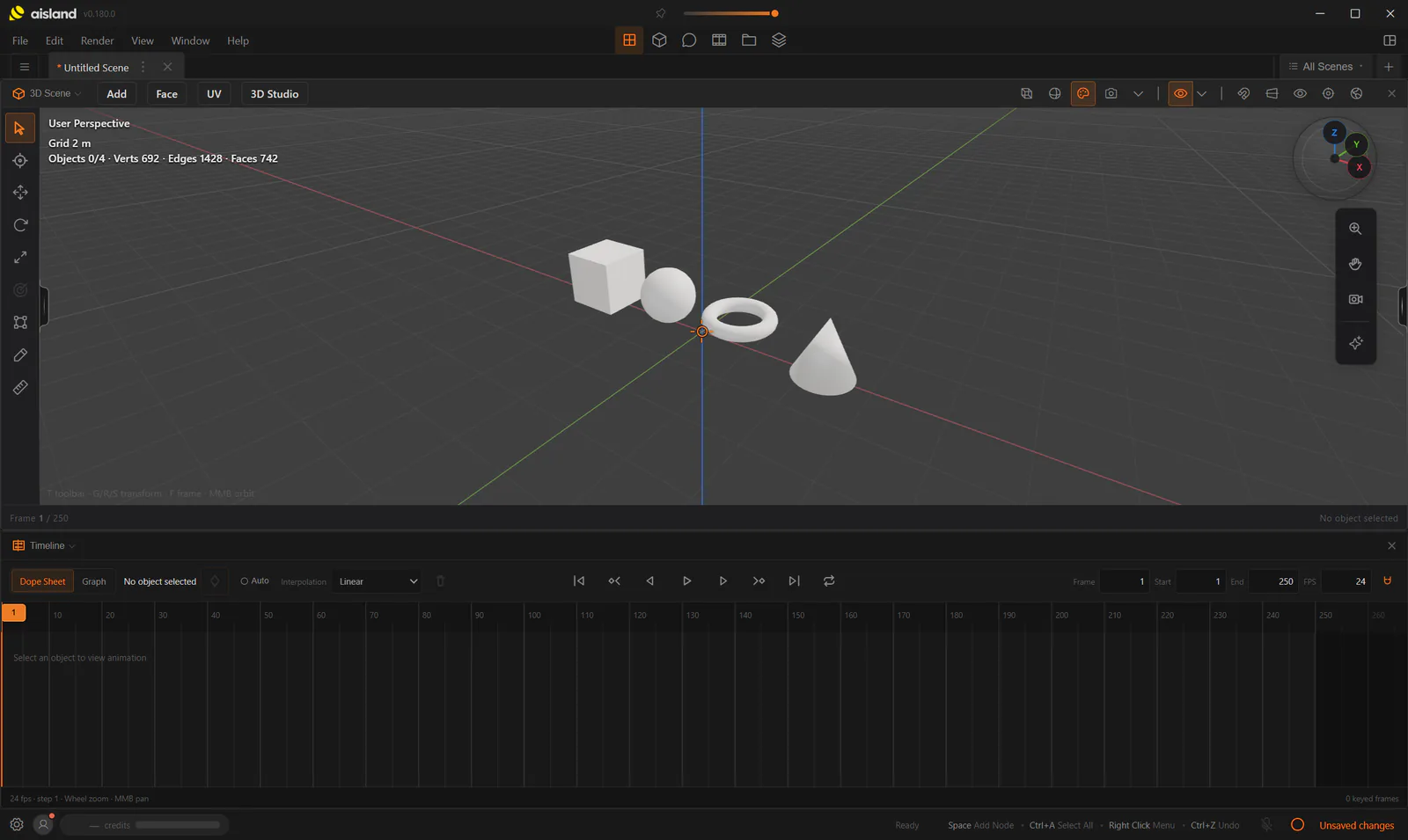
3D modelling and asset preparation
Model and texture 3D assets, then export them for the rest of your pipeline.
- Vertex, edge and face editing with extrude, inset, bevel, knife and loop cut
- Material Preview with a custom HDRI
- UV editing with Auto UV
- GLB and OBJ export, plus FBX import and export (beta)
- Optimize GLB for lighter files
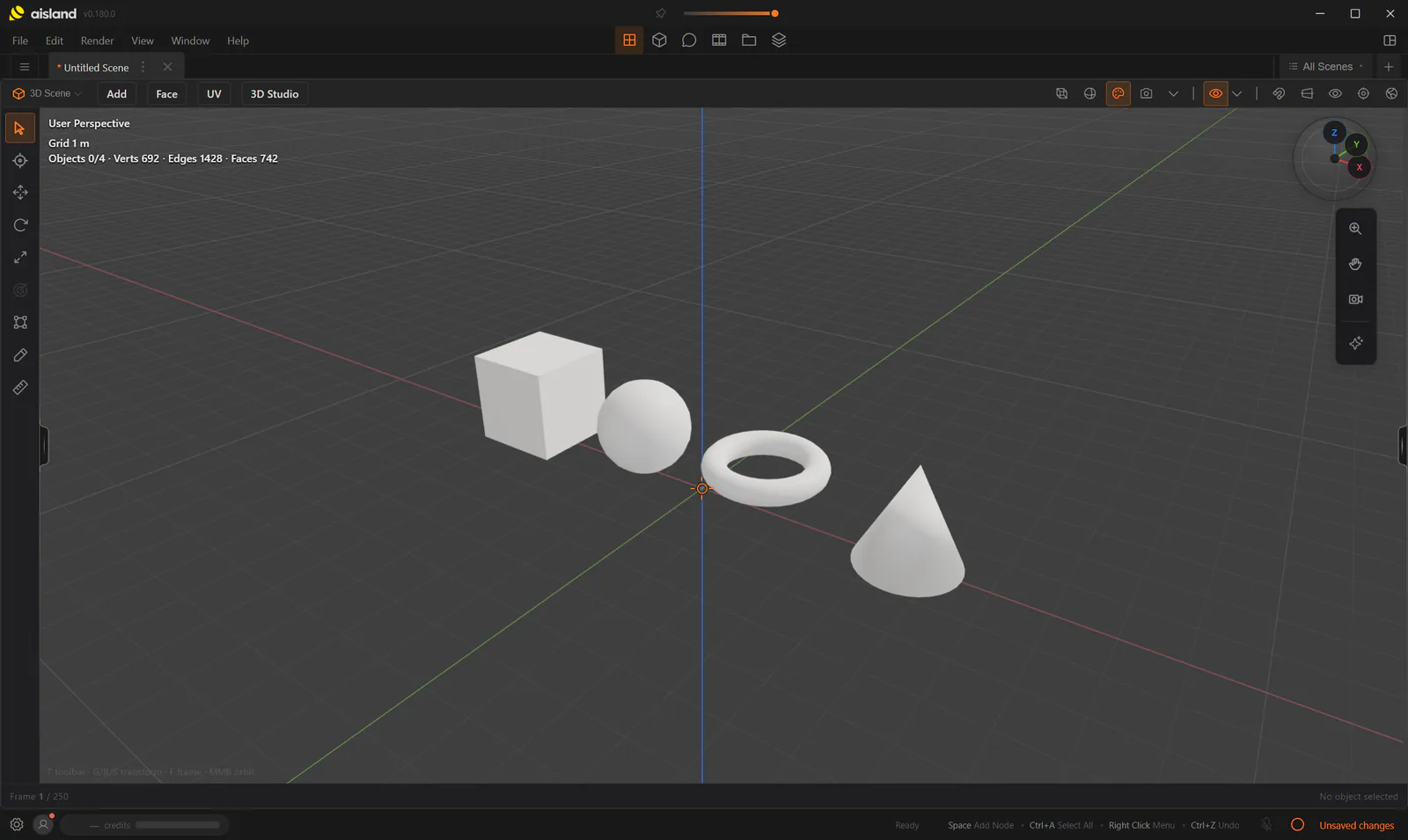
Camera and scene composition
Plan shots with real camera bodies, lenses and rigs inside the project.
- The Cinema Camera node with real camera bodies, lenses and capture settings
- Tripod and Handheld camera rigs, a Drone camera and a 360 camera
- Keyframes on a Timeline with a Dope Sheet and Graph Editor
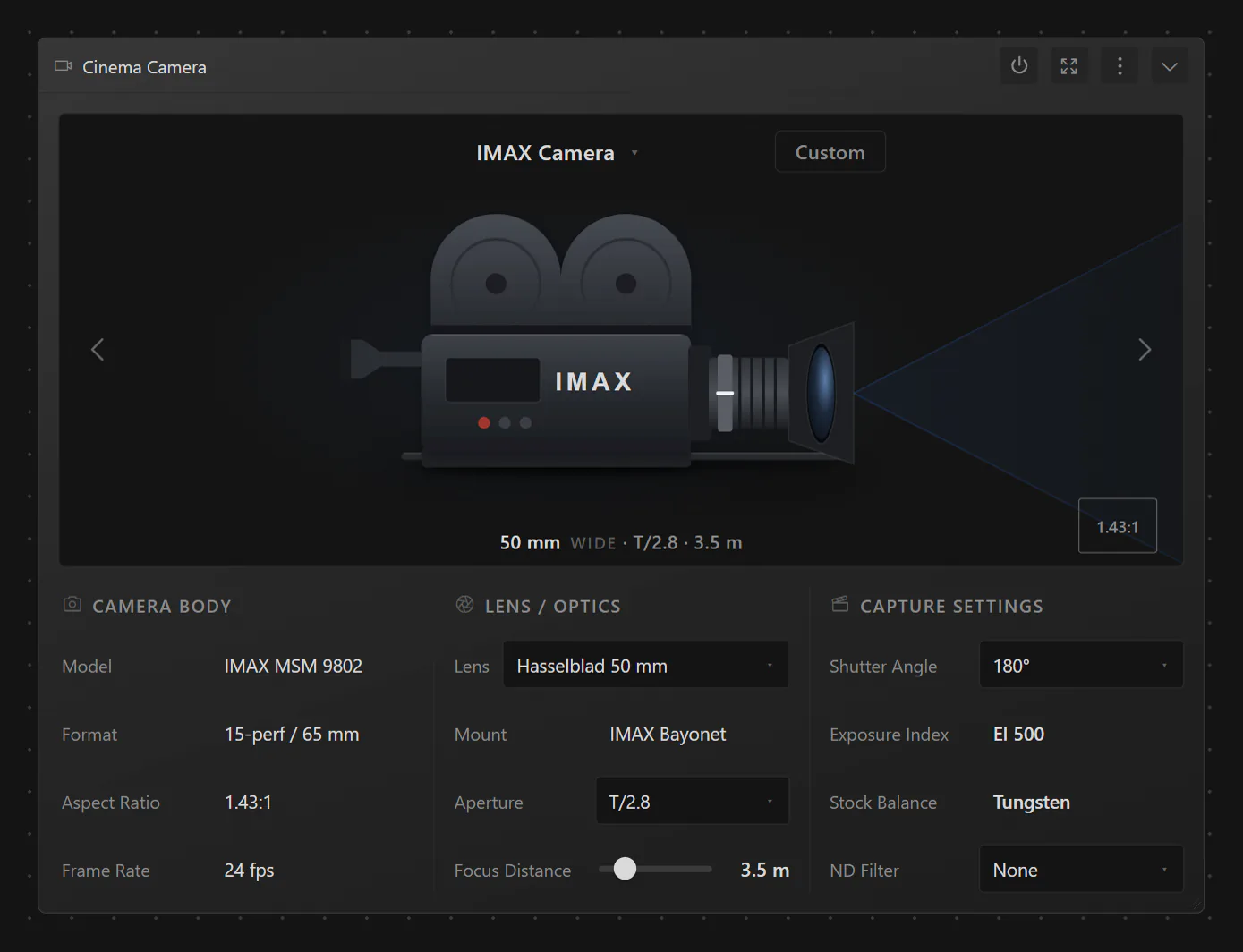
Rendering and visualization
Render the 3D scene you built to a still image or an animation, from the same project.
- Render an image or an animation
- Panorama export from the 360 camera
- Material Preview while you work
Media and utility workflows
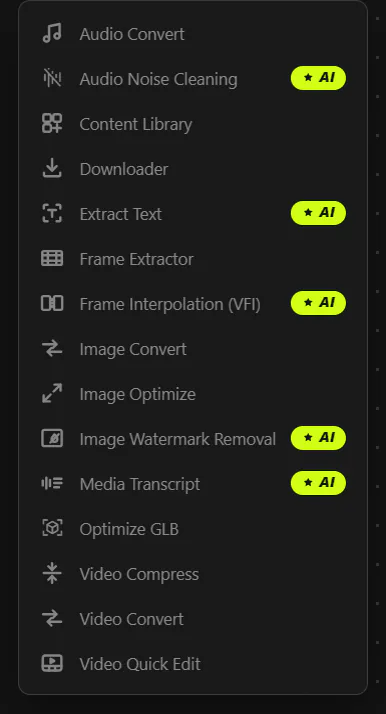
Handle everyday file jobs without leaving the project. Many of these tools run on your own computer, so the file stays with you.
- Convert, compress and trim video
- Convert audio, clean noise and separate voice from music
- Convert and optimize images
- Extract frames from video