Video
Generate video, turn a 3D scene into film, make motion graphics, dub, swap and edit.
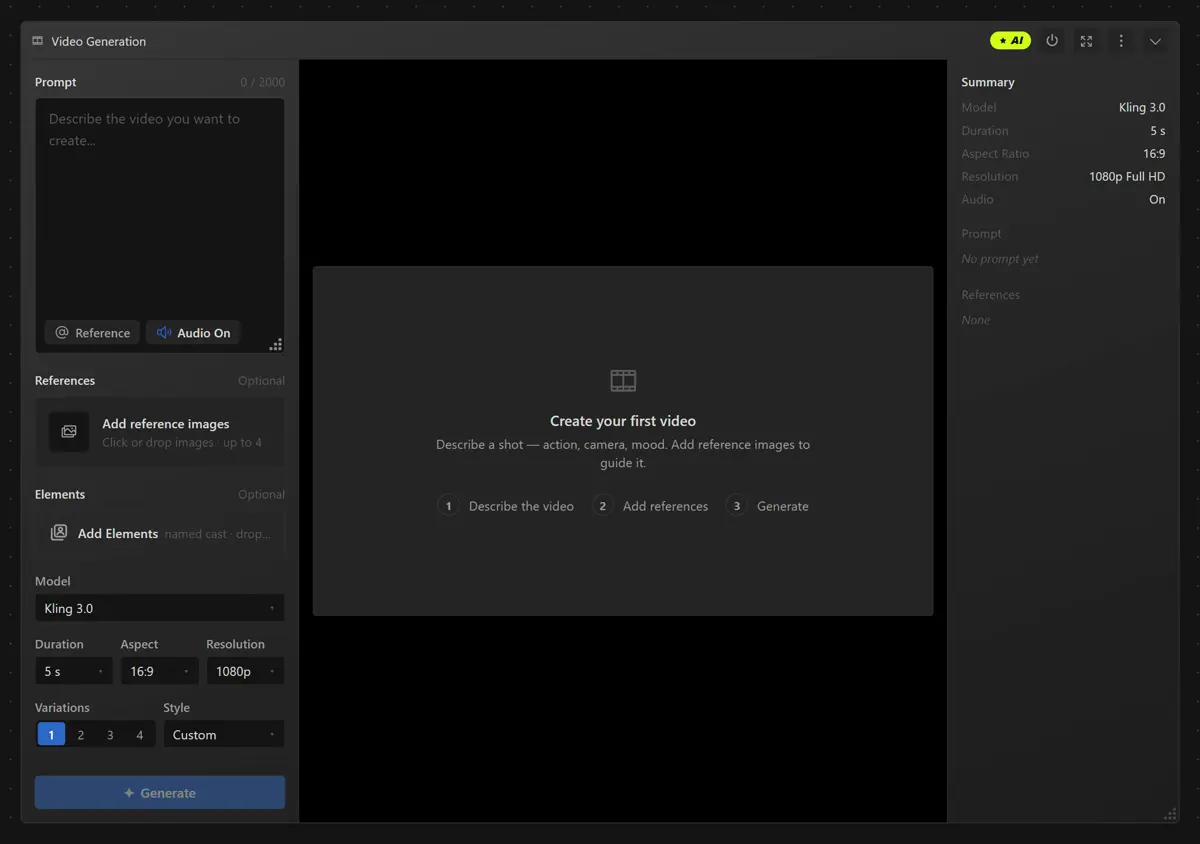
Video GenerationUses credits
Makes a short video from your words, and if you want, from up to four pictures.
Where AI Tools › Video, the node dock, or search “Video Generation”.
- Describe what should happen, or connect a Prompt node.
- Optional: add up to four reference pictures, or name people and places to use as @hero.
- Choose a Model, then the Duration, Aspect and Resolution.
- Click Generate. The node shows Preparing, Generating video, then Finalizing.
- Click the result you like. It becomes the node's output.
- Connect a clip and choose Motion guide to keep its camera move with a new look
- Or choose Continue to carry on from its last frame, joined into one clip
Tip The prompt can be up to 2,000 characters. If you do not have enough credits, or a run does not start, nothing is charged.
Scene to VideoFree and paid parts
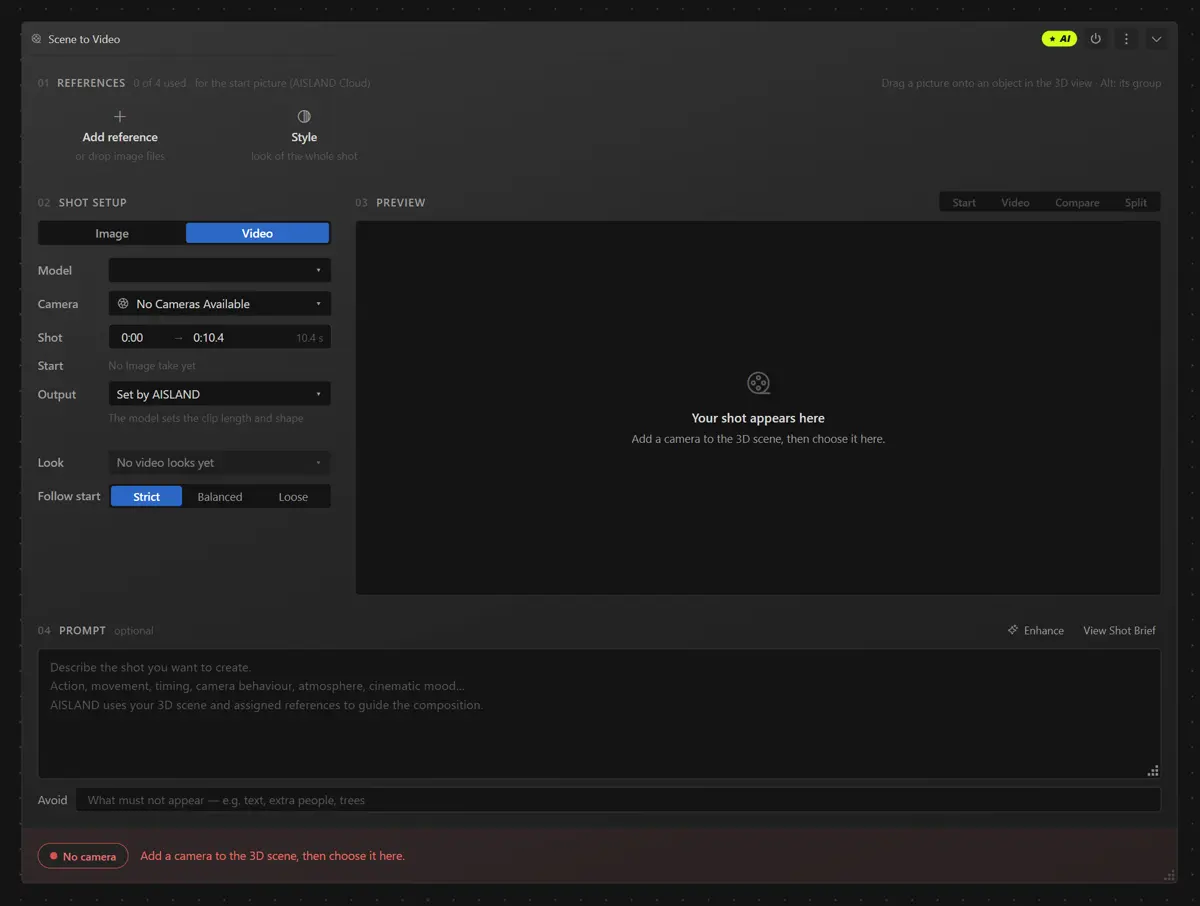
Turns your 3D scene, seen through a scene camera, into an AI picture or video that follows your layout.
Where AI Tools › Video, or search “Scene to Video”.
- Build the shot in the 3D scene and add a camera.
- Add the node and choose Image or Video.
- Pick the camera. For video, set where the shot starts and ends.
- Optional: drag reference pictures onto objects in the 3D view to give them a look.
- Click Generate. AISLAND first makes a grey clay version on your computer. Check it, then click Send.
Tip The clay preview is free. Nothing is charged until you click Send.
Motion GraphicsFree and paid parts
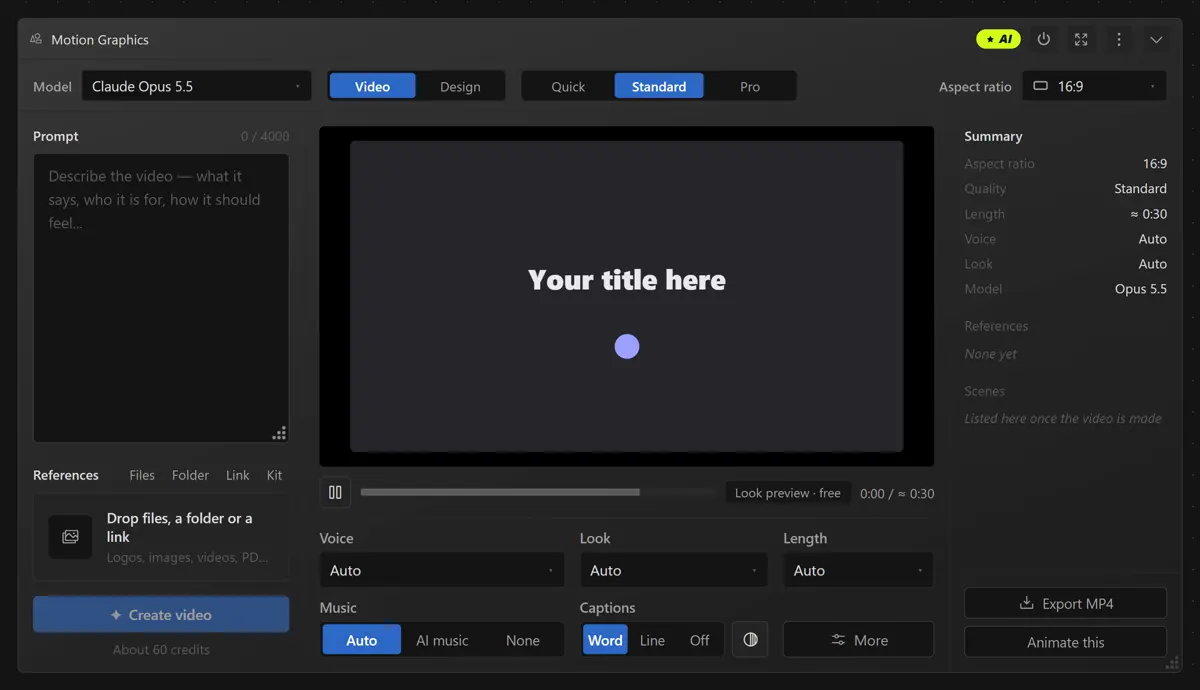
Makes an animated explainer or promo video, or a layered still design, from your words and your files.
Where AI Tools › Video, the node dock, or search “Motion Graphics”.
- Under Make, choose Video or Design.
- Describe it: what it says, who it is for, how it should feel.
- Add your files, a brand-kit folder or a link.
- Pick the Quality and Aspect ratio. The look preview is free.
- Click Create video (or Create design). The price shows first.
- Click Export MP4. For a design, Animate this turns it into a video.
- Look: bold type, clean, hand-drawn, playful, tech, cinematic, data story
- Music, captions and fonts; + Language makes the same video in other languages
- Design exports as PNG, JPG, SVG with editable layers, or PDF
Lip SyncUses credits
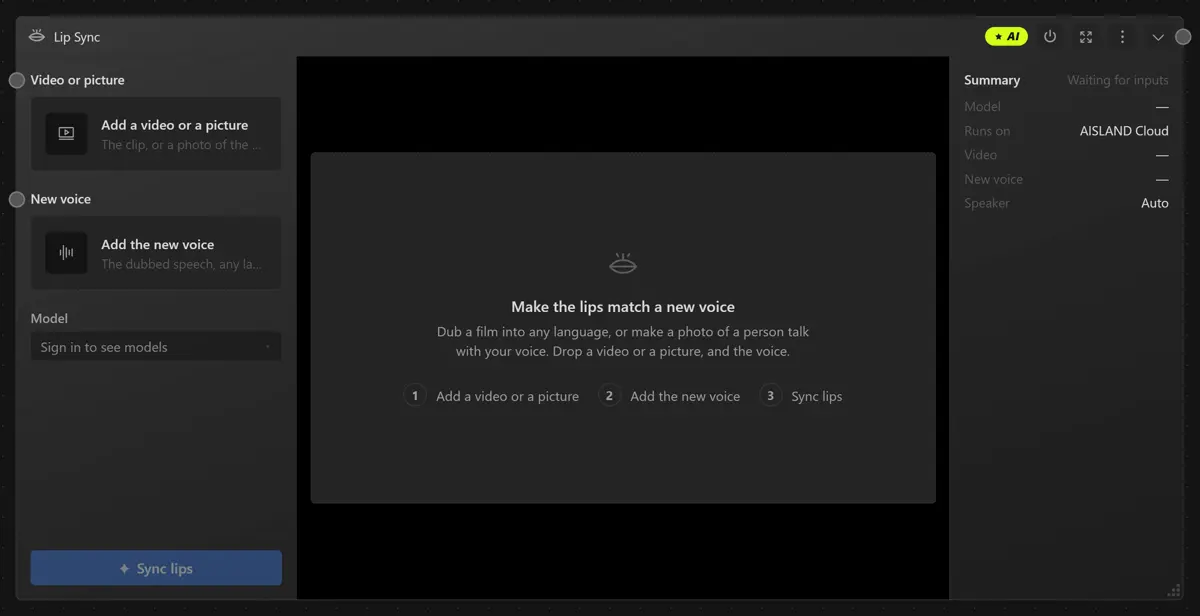
Makes the lips in a video match a new voice, for dubbing into another language, or makes a photo talk.
Where AI Tools › Video, or search “Lip Sync”.
- Connect or drop a video, or a photo.
- Connect or drop the new voice.
- Pick a Model. Choose the speaker, or leave it on Auto.
- Click Sync lips (for a photo: Make it talk). The price shows first.
- Compare with the original, then export.
Tip The video must be MP4; use Video Convert first if needed. Long videos are synced shot by shot.
Character SwapUses credits
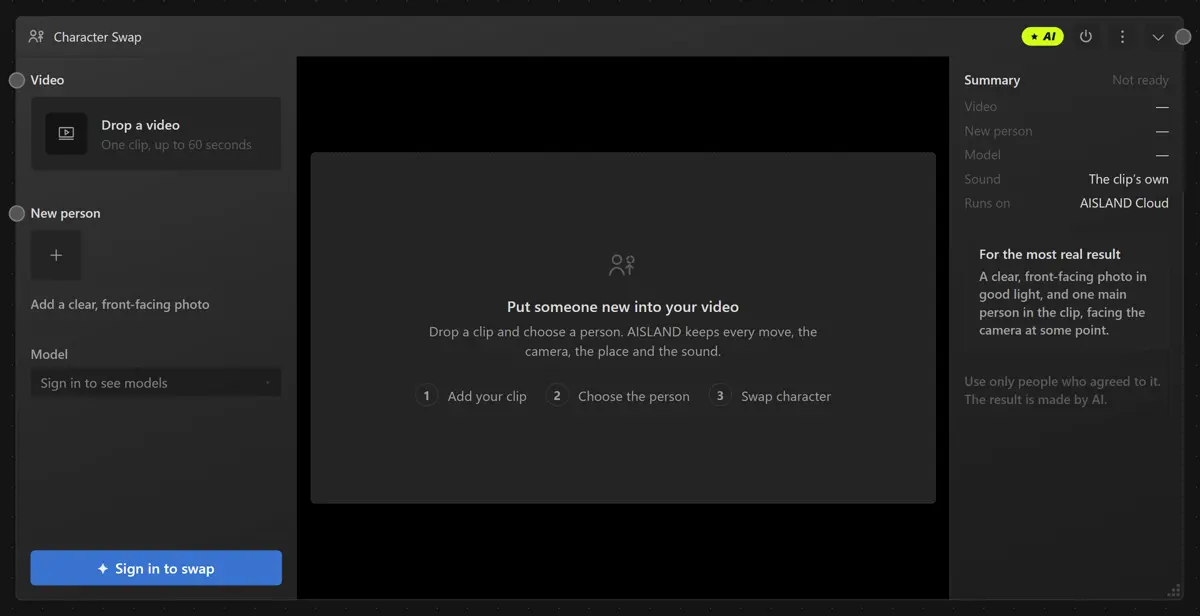
Puts a different person into a video, keeping the moves, camera, place, light and sound.
Where AI Tools › Video, or search “Character Swap”.
- Connect or drop one clip, up to 60 seconds.
- Under New person, pick a saved character or add a clear, front-facing photo.
- Confirm you have permission to use the person's picture.
- Pick a Model and click Swap.
Multi-Camera ShotsUses credits
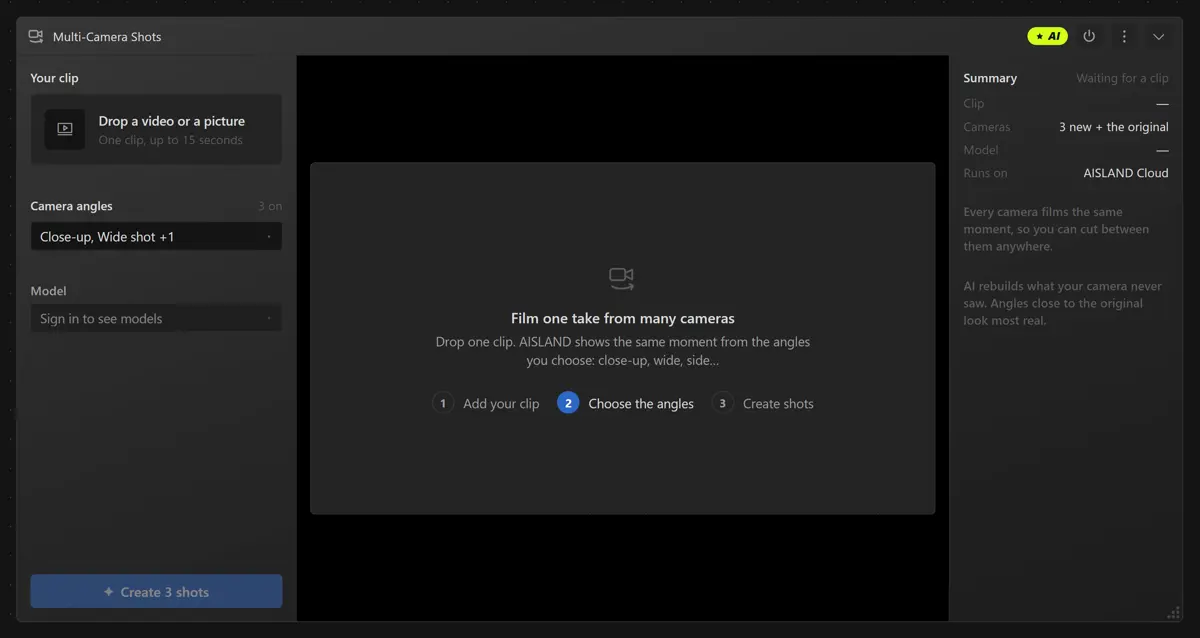
Takes one clip and makes the same moment from other camera angles, so you can cut between them.
Where AI Tools › Video, or search “Multi-Camera Shots”.
- Connect an MP4 clip of 2 to 15 seconds.
- Turn camera angles on or off: close-up, wide, left or right 3/4, high, low and more.
- Pick a Model and click Create shots.
- Pick the shot you want from the camera wall.
Tip Angles close to the original look most real.
Video EditFree and paid parts
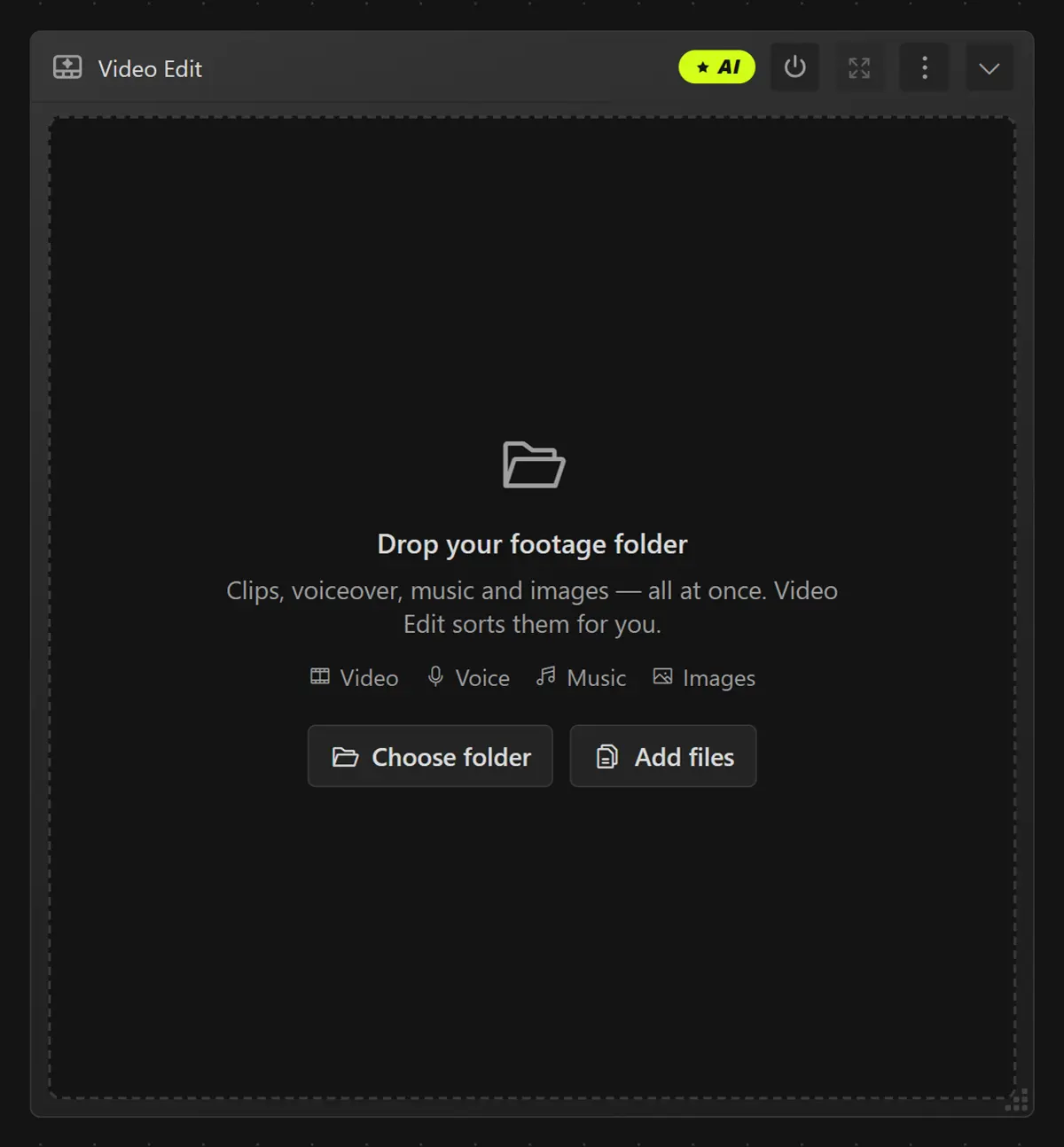
Edits your clips, voice and music into one finished video, by hand on a timeline or by describing what you want.
Where AI Tools › Video, or search “Video Edit”.
- Click Choose folder or Add files.
- Choose One edit, or Shorts to cut several 9:16 shorts from one long talk.
- Describe the edit, pick a style and click Edit. Or click Edit by hand.
- Click Open editor to split, add text, change speed, crop and set volume.
- Click Export to make one MP4. Premiere / Resolve saves the edit as an XML timeline.
Tip Editing by hand and exporting run on your computer for free. Only editing with AI uses credits.
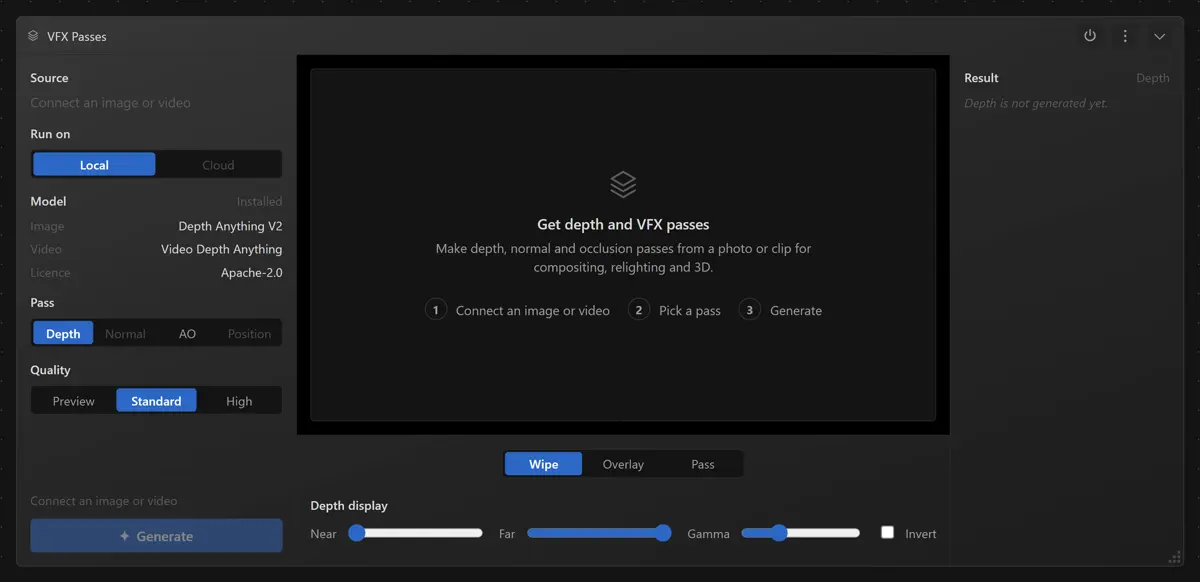
VFX PassesFree, on your computer
Makes depth, normal and ambient-occlusion passes from an image or a video, for compositing.
Where AI Tools › Video, or search “VFX Passes”.
- Connect an image or a video.
- The first time, click Download Model (about 5 GB, once).
- Choose a Quality and click Generate.
- Pick a pass to view it, then click Export EXR.
Tip It runs on your computer and needs an NVIDIA graphics card. Nothing is uploaded.
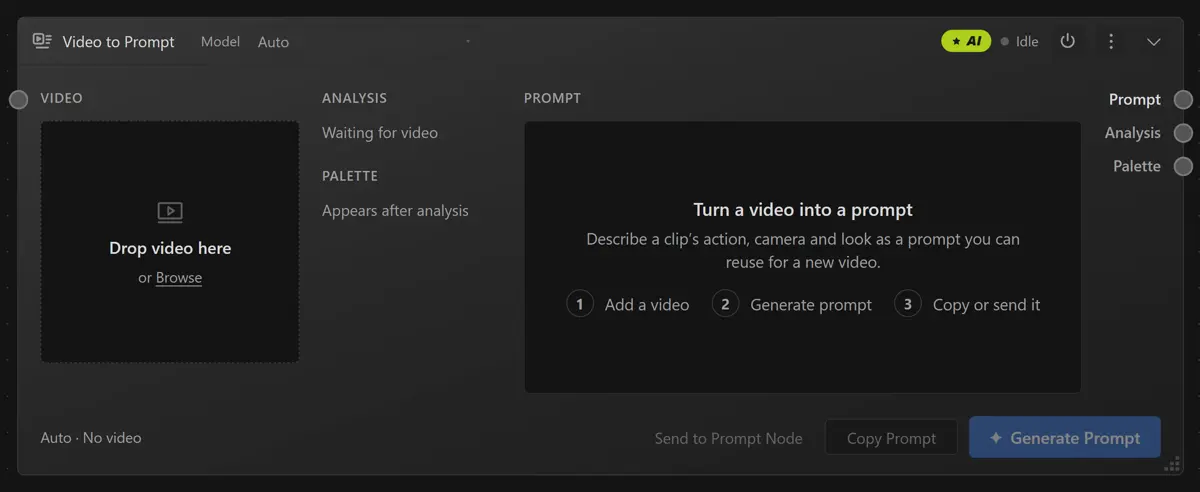
Video to PromptFree and paid parts
Watches a video and writes a prompt to make one like it, with the shots, camera moves, pace and colours.
Where AI Tools › Prompt, the node dock, or search “Video to Prompt”.
- Connect a Video node, or drop a video on the node.
- Click Generate Prompt.
- Read the Prompt, Analysis and Palette, then Copy Prompt or Send to Prompt Node.
Tip Motion, pace and colours are measured on your computer. Only a few still frames go online, never the whole video.
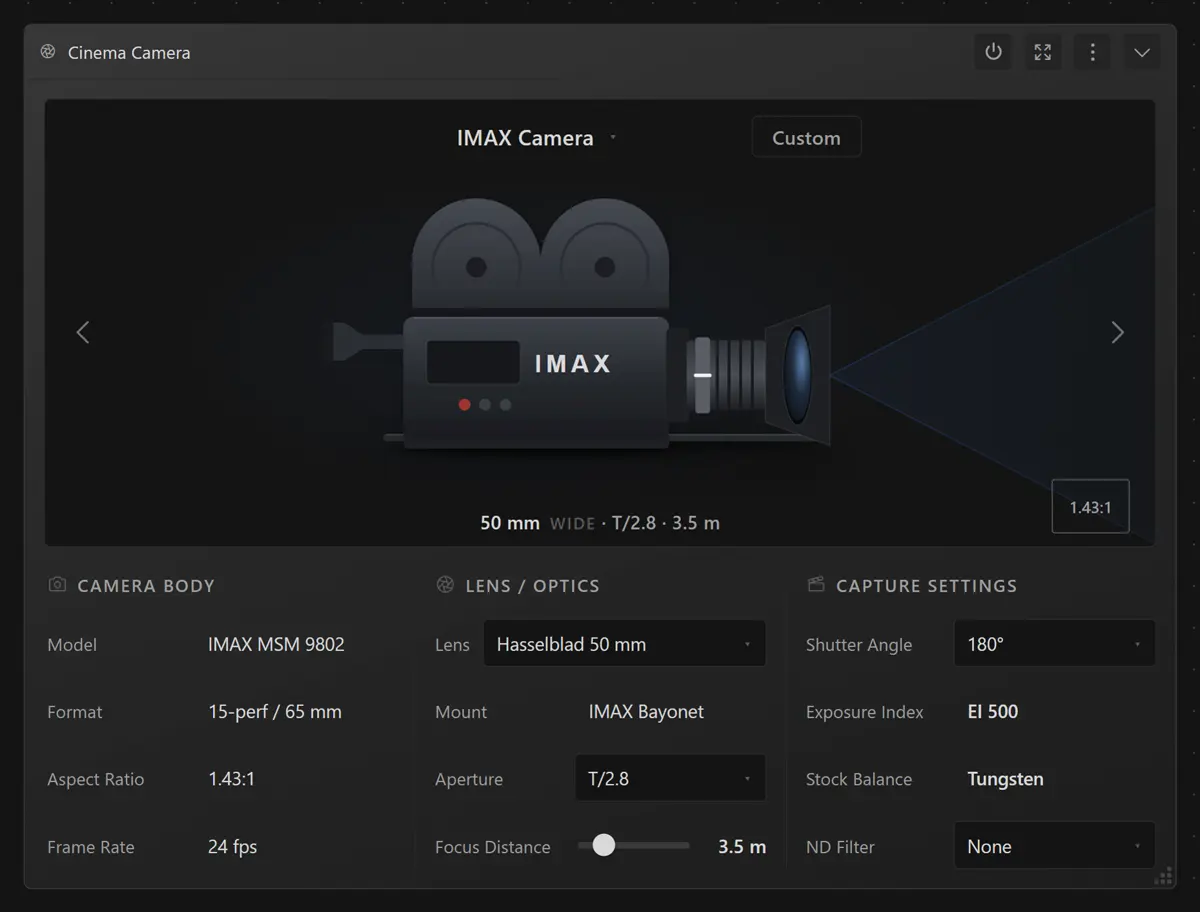
Cinema CameraFree, on your computer
Pick a real camera body, lens and capture settings, from IMAX to ARRI and RED. Connect it to Director to set the camera, lens and focus.
Where AI Tools › Video, or search “Cinema Camera”.