Account, credits and projects
Sign in, check and buy credits, and create, save and recover projects.
Sign inFree, on your computer
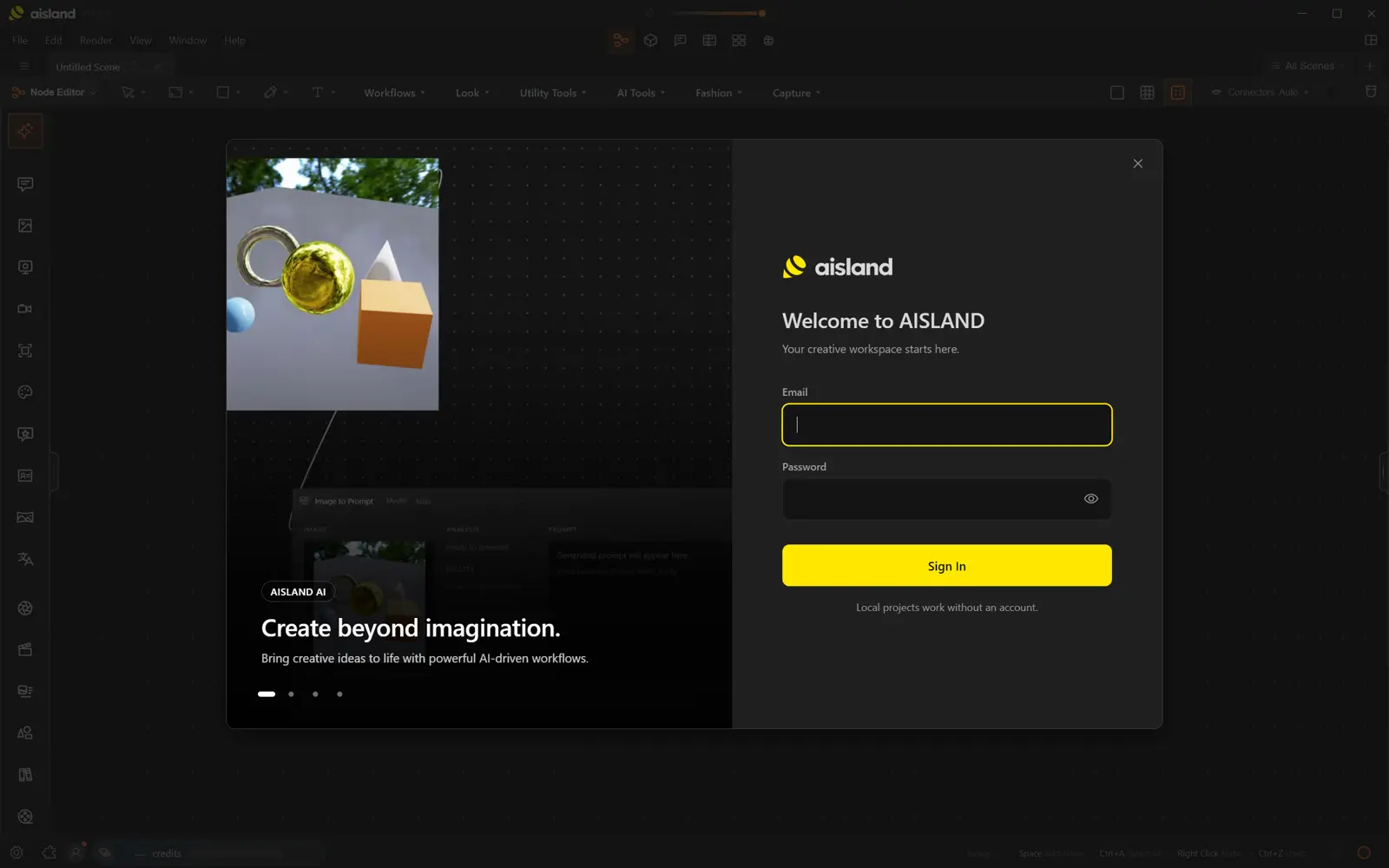
Sign in with your AISLAND account to use the AI tools and see your credits. Local work needs no account.
Where The Settings gear at the bottom-left, then Sign In.
- Click the Settings gear at the bottom-left of the window.
- Click Sign In.
- Type your email and password, then click Sign In.
- To sign out, open Settings › Account and click Sign Out.
Tip AISLAND never saves your password; it clears the field after every try.
Credits
Credits pay for AI generations. The credits meter at the bottom of the window shows how many you have left.
Where The credits meter at the bottom-left. A node that runs out shows a Get credits button.
- Sign in. The meter shows your balance.
- Click the meter to open the Credits panel.
- Use Which pack fits you? to see the smallest pack that covers your month.
- Click Buy. The secure payment page opens in your browser.
- Return to AISLAND. Your credits appear by themselves; no restart needed.
- Packs: Starter, Gold, Platinum and Diamond. Pay once, no subscription
- Credits are valid for 12 months
- Failed generations are never charged
- Every Generate button shows its price before you run it
Tip The meter turns red when you are low. Hover it to see the exact number.
Create, save and open a projectFree, on your computer
A project holds your canvas, scenes and files, saved as one .ais file.
Where The File menu.
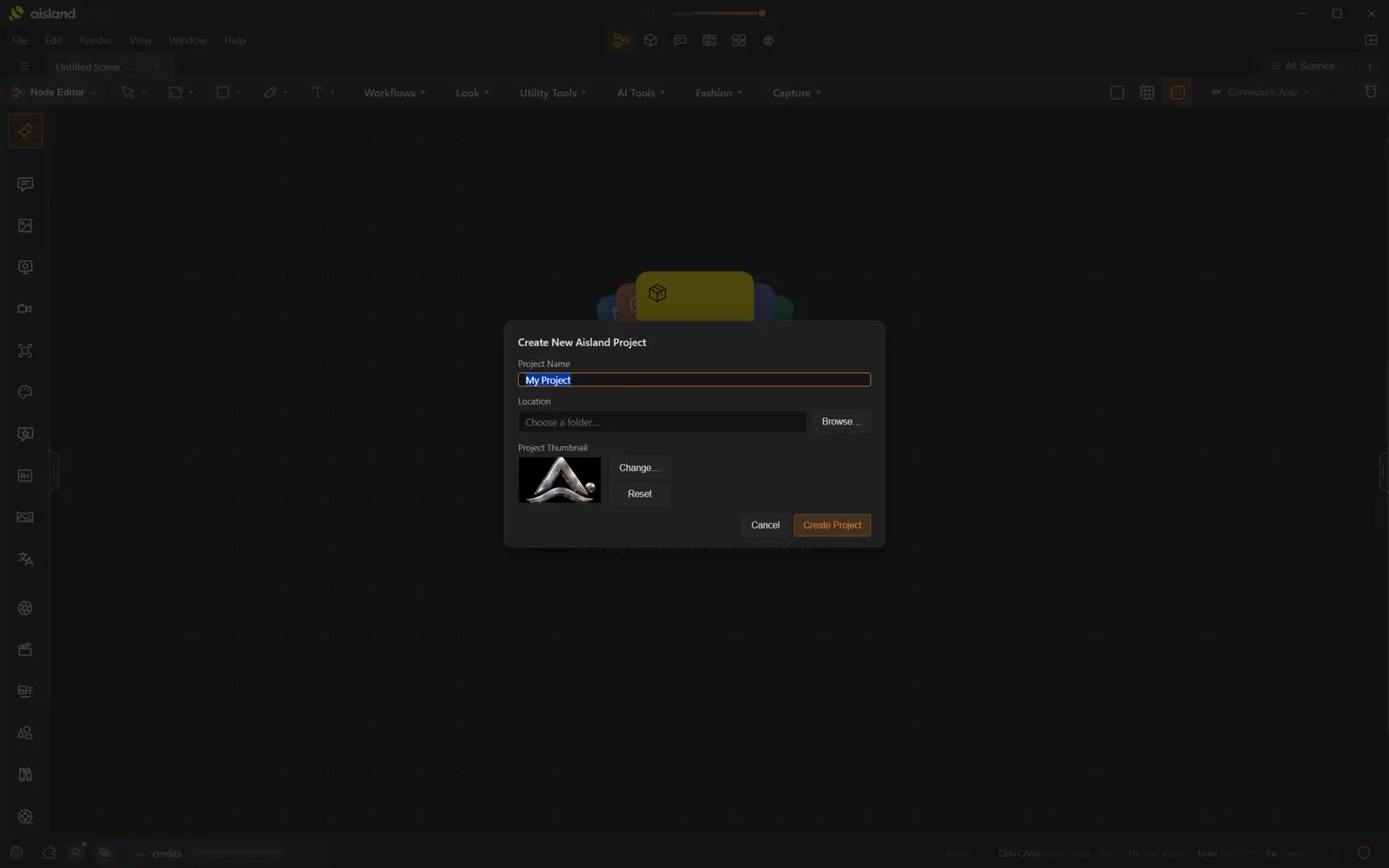
- Click File › New Project (Ctrl+N).
- Type a project name and choose where to save it, then click Create Project.
- Save with File › Save Project (Ctrl+S), or Save Project As (Ctrl+Shift+S) for a copy.
- Open a project with File › Open Project (Ctrl+O) or File › Open Recent.
- A project can hold several scenes: click + in the tab bar, or All Scenes to switch
- Double-click the project name in the tab bar to rename it
Tip AISLAND keeps a recovery copy about 30 seconds after you edit. If it finds newer changes when you open a project, it offers to recover them.