Voice and music
Turn a script into speech, make songs, dictate, and clean or separate audio.
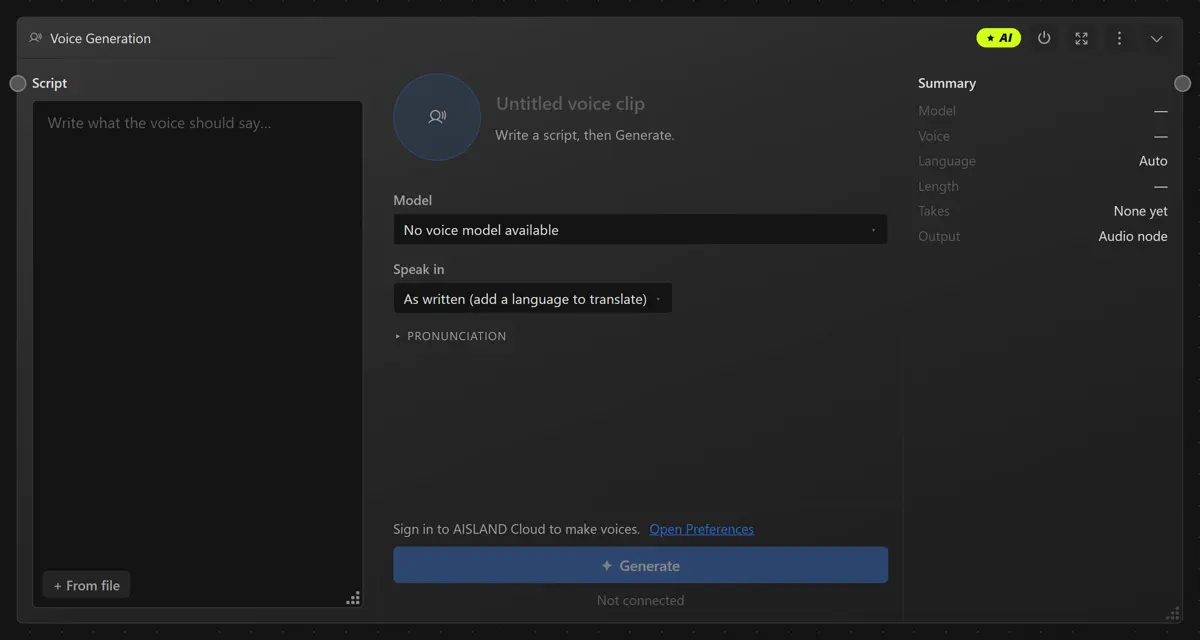
Voice GenerationUses credits
Turns a written script into spoken audio, and can speak it in other languages.
Where AI Tools › Audio, or search “Voice Generation”.
- Type the script, connect a text node, or click + From file to read a PDF or text file.
- Choose a Model, then a Voice. Narrow the list by language, gender and use.
- Optionally set the Speed and Takes, or pick languages under Speak in.
- Click Generate. The clip appears as an Audio node.
- Write lines as “Name: line” and each speaker gets their own voice
- Add pauses and pronunciations, such as “AISLAND = Eye-land”
- Speak in 24 languages, including Hindi, Telugu, Tamil, Kannada and Malayalam
Tip Up to 20,000 characters per node. Clips are also saved to Documents/AISLAND/Audio.
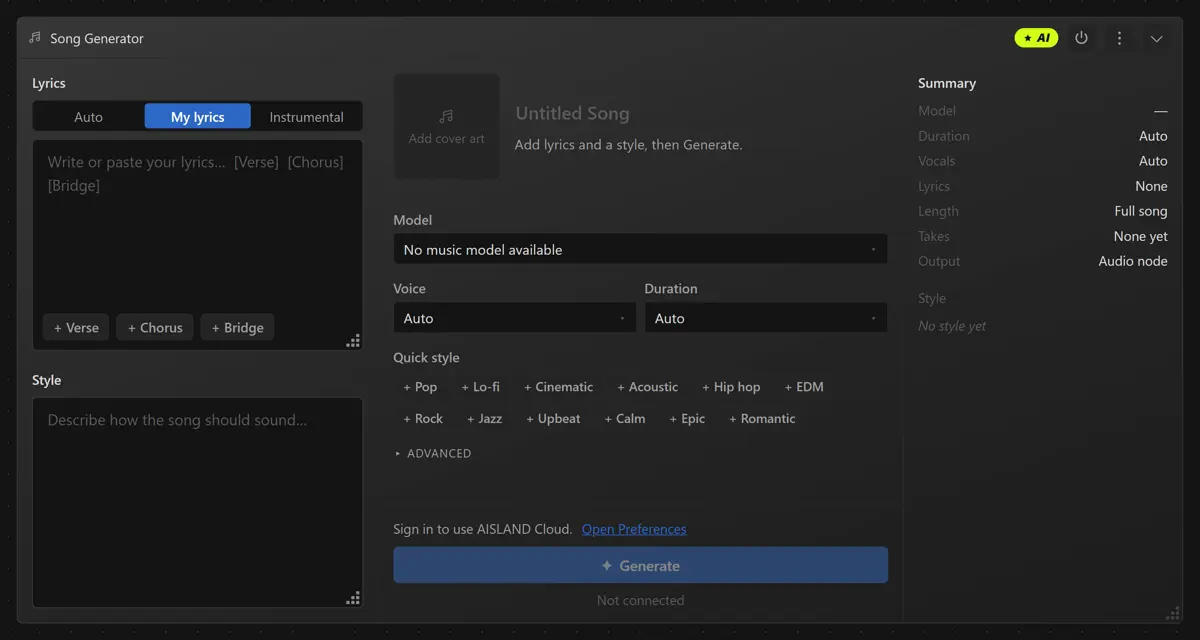
Song GeneratorUses credits
Makes a song from your lyrics and a description of the style.
Where AI Tools › Audio, or search “Song”.
- Choose who writes the words: Auto, My lyrics or Instrumental.
- With My lyrics, type them in. You can use [Verse], [Chorus] and [Bridge].
- Describe the sound, or click Quick style tags.
- Choose the Voice and Duration if shown, then click Generate.
Tip A song can take a few minutes. The node shows each stage while it works.
DictationFree and paid parts
Speak instead of typing. Your words go into the prompt or text box you are writing in.
Where The Speak button on a Prompt node. Choose the model in Preferences › AI › Agent › Dictation model.
- Click into the text box you want to fill.
- Click Speak and talk.
- Click the microphone again to stop. Your words are added after what you typed.
Tip Whisper Tiny and Whisper Base are free and run on your computer, with nothing sent away. The other models use credits.
Audio Noise CleaningFree, on your computer
Removes background noise from a voice recording, on your computer.
Where Utility Tools, or search “noise”.

Voice & Music SeparatorFree, on your computer
Splits a song or a video's sound into the voice and the music, on your computer.
Where Search “Voice & Music Separator”.

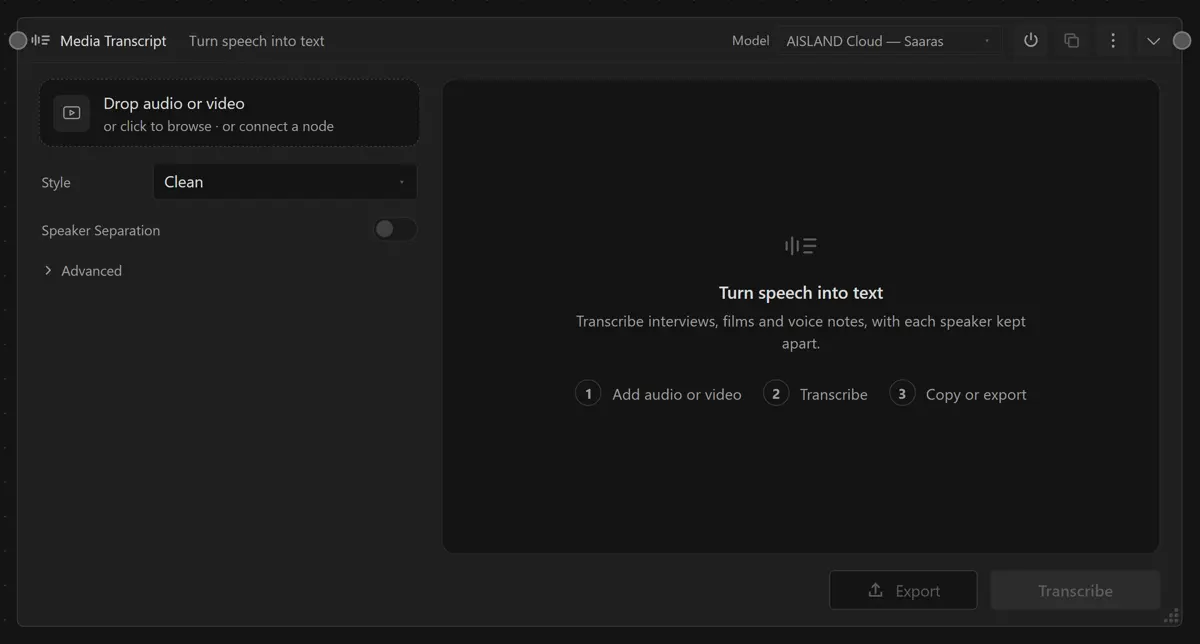
Media TranscriptFree, runs online
Turns the speech in a video or audio file into text, with timings. It runs online, so sign in first.
Where Search “transcript”.