Create images
Make pictures, character and product sheets, 360° panoramas and seamless textures.
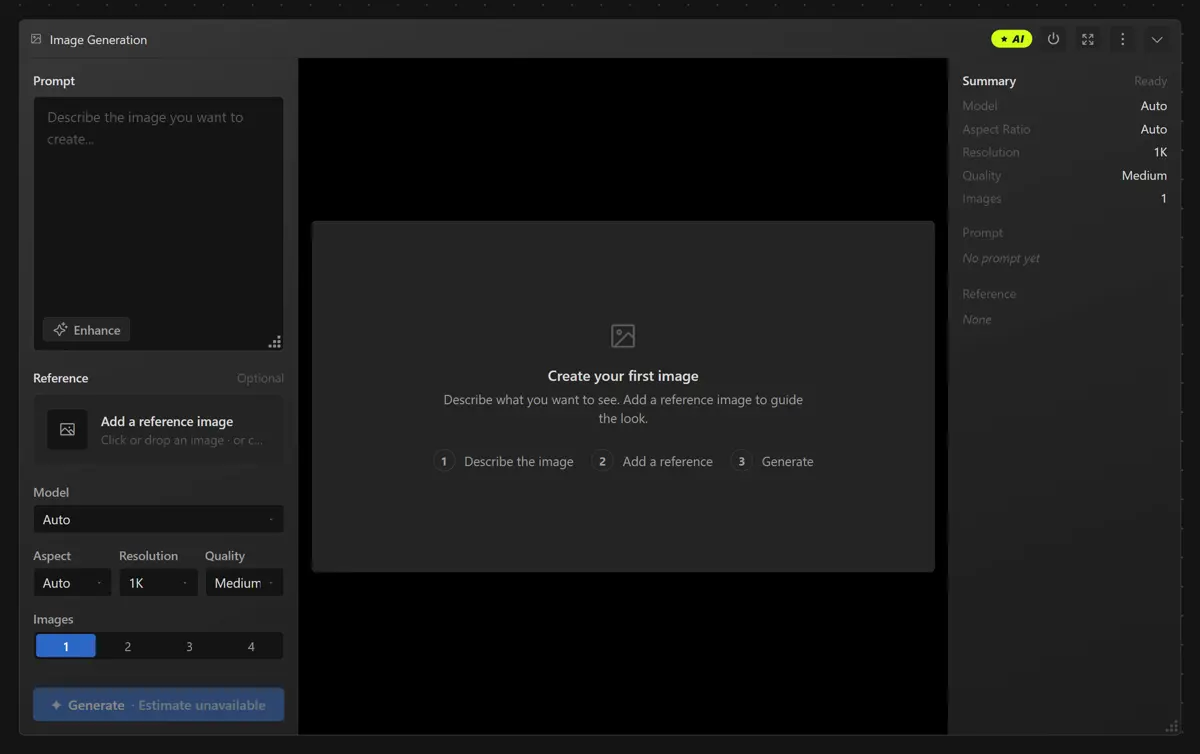
Image GenerationUses credits
Makes new pictures from a description, optionally guided by a reference picture.
Where AI Tools › Image Generation, the node dock, or search “Image Generation”.
- Type what you want in Prompt, or connect a Prompt node.
- Optional: click Add a reference image, or connect an Image node.
- Choose the Model (Auto is fine), Style, Aspect and how many Images (1 to 4).
- Click Generate. The button shows the price first.
- Click a result to keep it. Drag it onto the canvas or click Export to save a PNG.
- Style: Custom, Cinematic, Hyper-realistic, Animated, Anime, Illustration
- Aspect: Auto, 1:1, 3:2, 2:3, 16:9, 9:16, 4:3, 3:4, 21:9, 360 or a custom ratio
- Resolution 1K, 2K or 4K and Quality, where the model offers them
Tip A reference must be a PNG, JPEG or WebP under 8 MB. If you do not have enough credits, nothing is charged.
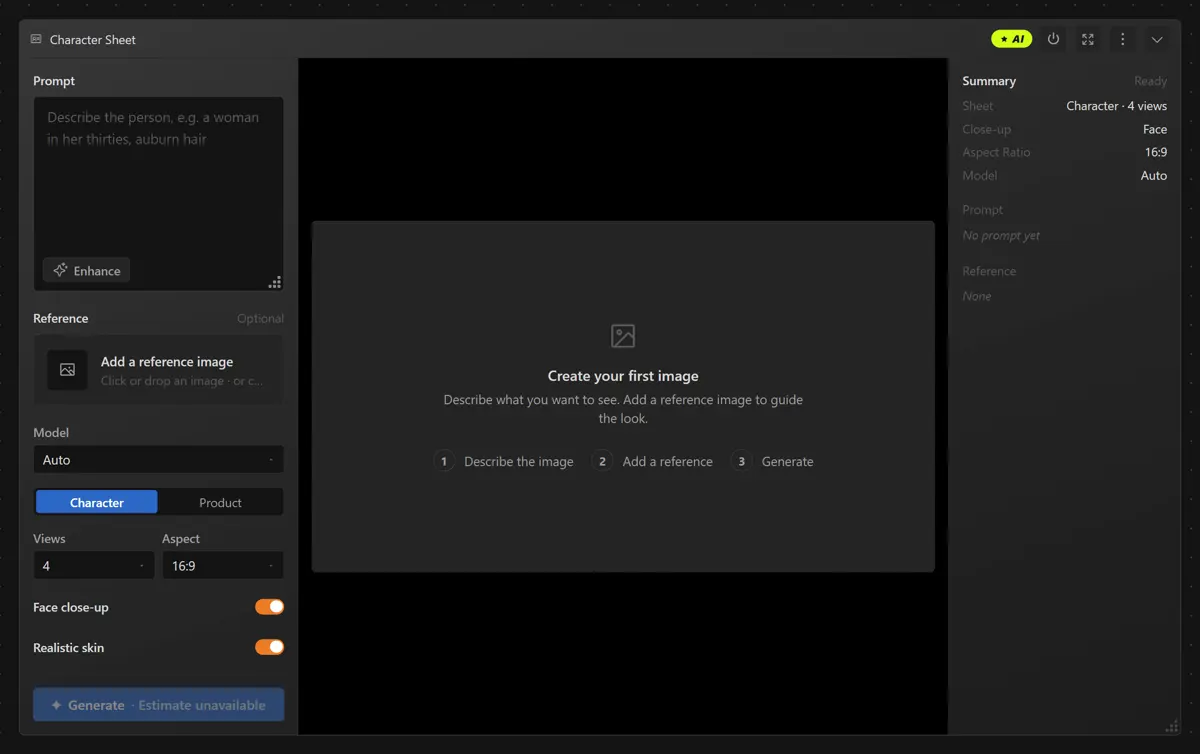
Character Sheet and Product SheetUses credits
One picture that shows a character or a product from several angles, to keep them the same in every shot.
Where AI Tools › Image Generation, or search “character sheet” or “product sheet”.
- Choose Character or Product.
- Describe them in Prompt, or add a reference picture.
- Choose the Views (3, 4, 6 or 8) and the Aspect.
- Leave Face close-up (or Detail close-up) on for an extra close-up picture.
- Click Generate. For a character, click Save as character to use it by @name everywhere.
Tip The close-up is made as a second picture, so it doubles the price.
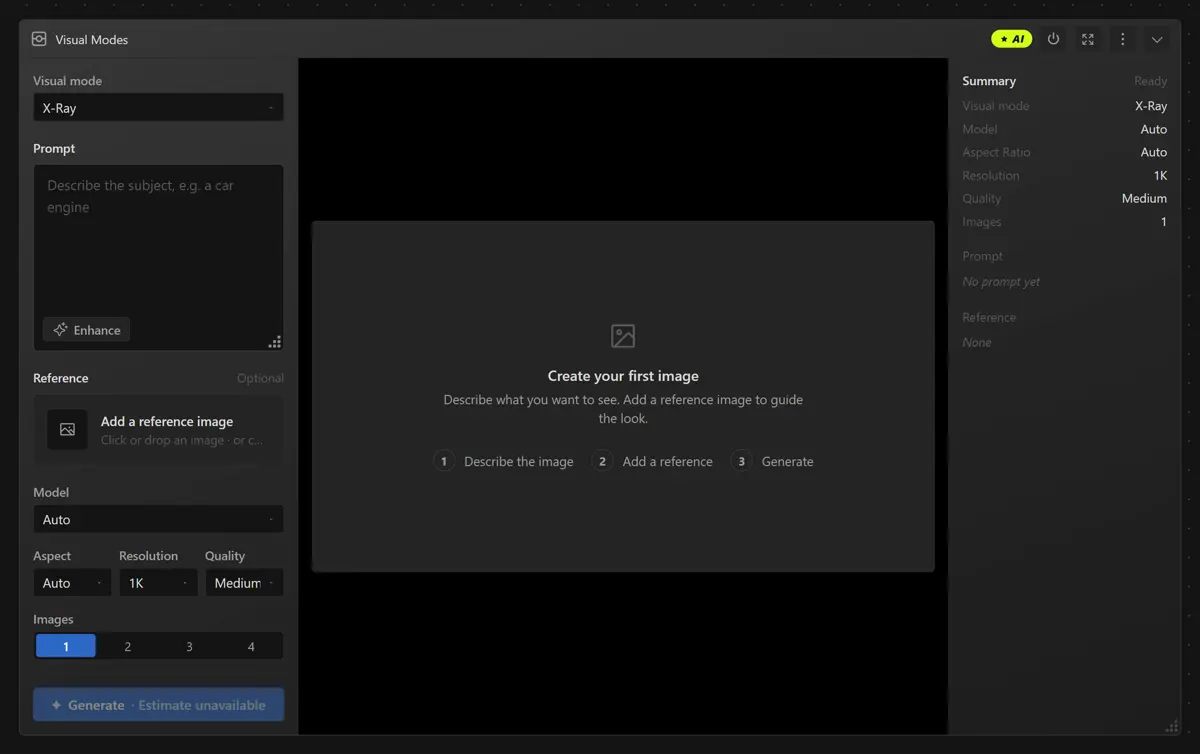
Visual ModesUses credits
Shows the same subject in a new way: an X-ray, a blueprint, a cutaway, a thermal image and more.
Where AI Tools › Image Generation, or search “visual modes”.
- Connect a picture to Reference, or describe the subject in Prompt.
- Open Visual mode and pick a mode, or type your own.
- Click Generate, then keep the result you like.
- Groups: inside and structure, technical drawing, camera and angle, scientific imaging, presentation, art style, material and render, light and weather
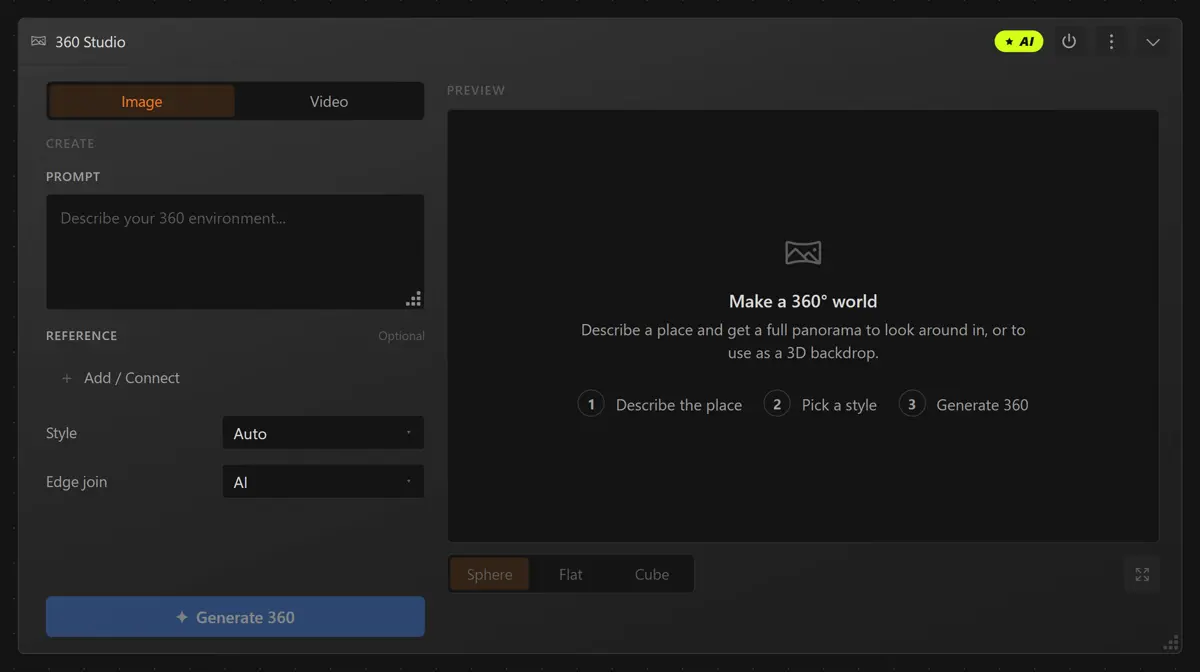
360 StudioUses credits
Creates 360° panoramas you can look around in, edit, animate and export for VR, the web and 3D.
Where AI Tools › Image Generation, or search “360”.
- Describe the place in Prompt, or connect one. Optionally add a reference picture.
- Pick a Style and an Edge join.
- Click Generate 360. The button shows the price.
- Drag the preview to look around; switch between Sphere, Flat and Cube.
- Export a PNG or JPEG, or use it as the 3D environment.
Tip In the Video tab, turn to what should move, describe it and click Animate this view. A failed online job is retried once and not charged.
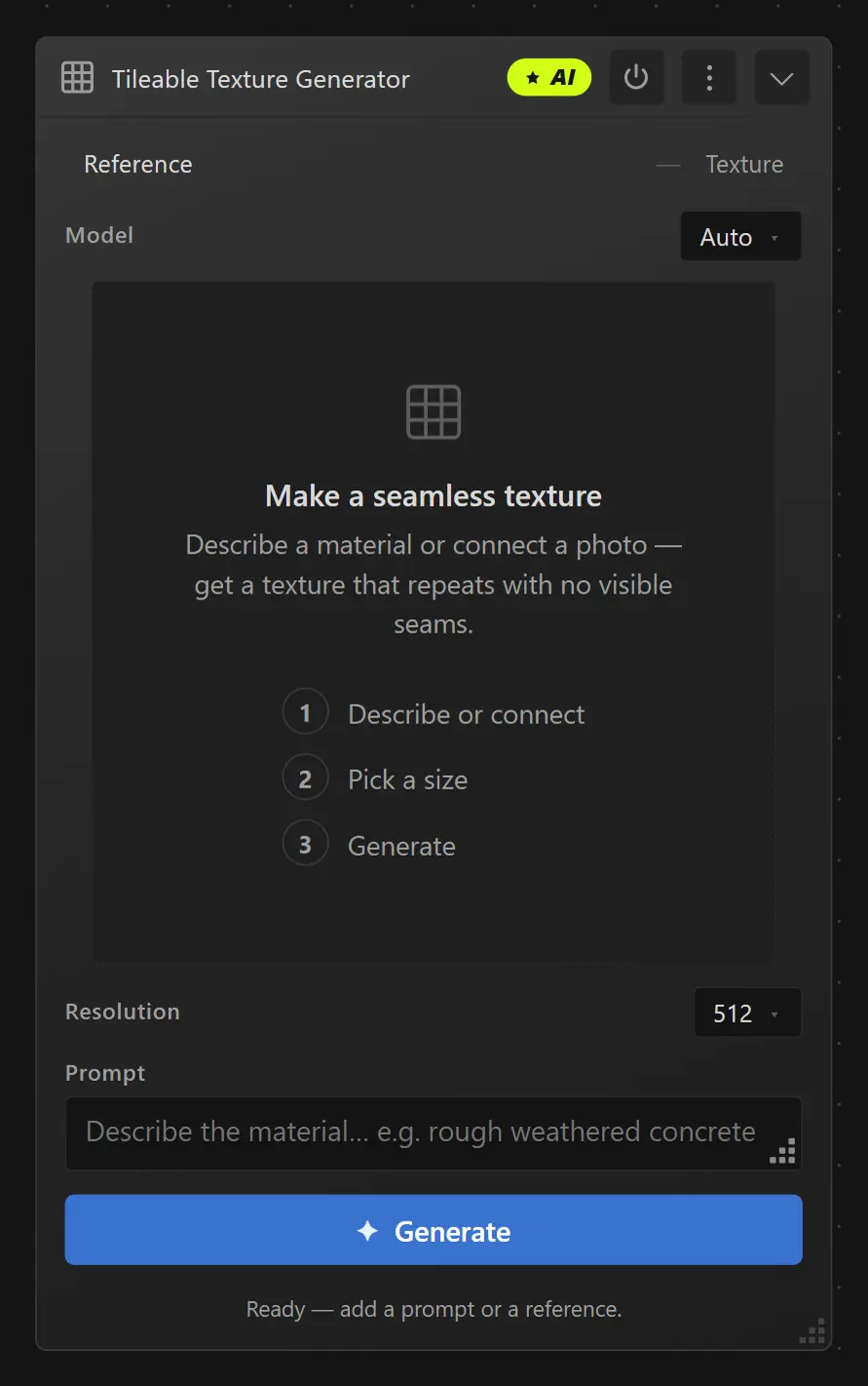
Tileable Texture GeneratorUses credits
Makes a square texture that repeats with no visible seams, for 3D materials.
Where AI Tools › Image Generation, or search “tileable texture”.
- Type the material, for example “rough weathered concrete”, or connect a reference texture.
- Choose the Resolution: 512, 1024 or 2048.
- Click Generate. Use Regenerate for another try.
Prompt PresetsUses credits
Makes a picture from a ready-made look, plus your own words.
Where AI Tools › Prompt, the node dock, or search “Prompt Presets”.
- Click Search or explore and pick a preset.
- Optionally add a style or a detail on top.
- Describe what you want, or connect a Prompt.
- Click Generate.
Tip Picking or changing a preset never spends credits. Only Generate does.
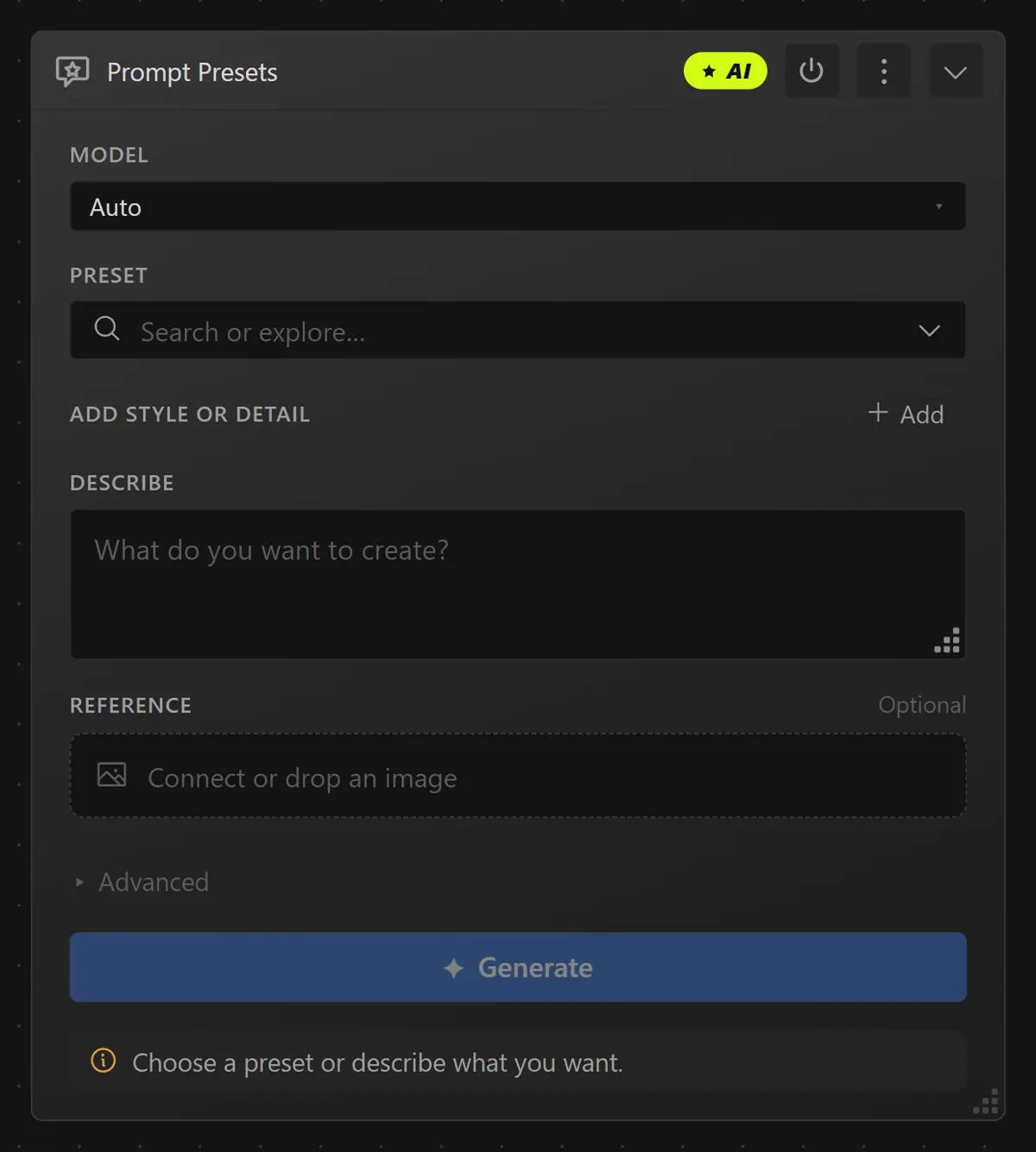
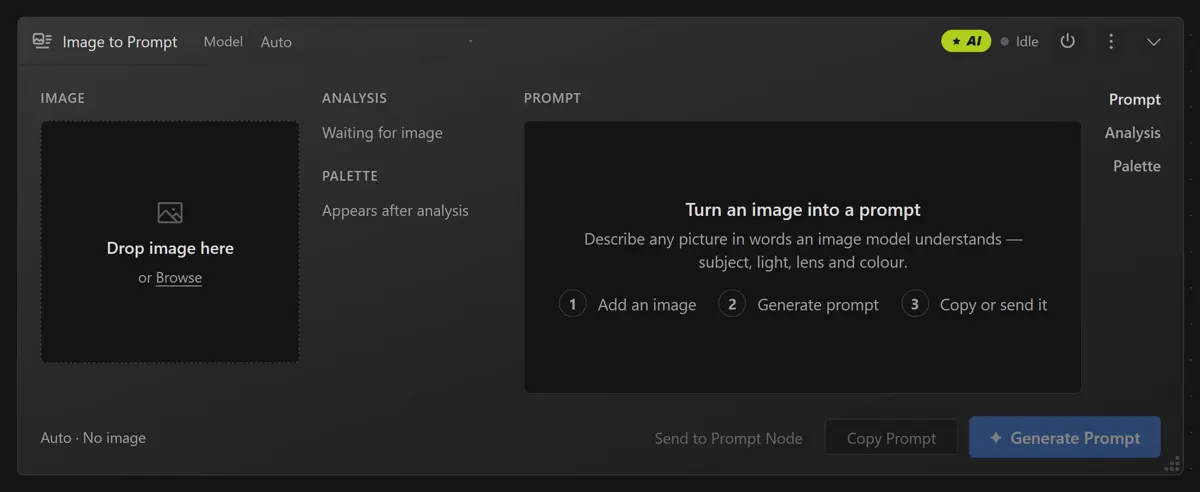
Image to PromptUses credits
Looks at a picture and writes a detailed prompt to make one like it, with its colour palette.
Where AI Tools › Prompt, or search “Image to Prompt”.
- Connect an image, or drop one on the node.
- Click Generate Prompt.
- Click Copy Prompt, or Send to Prompt Node.