Edit images
Change part of a picture, relight it, make it sharper, or cut out the background.
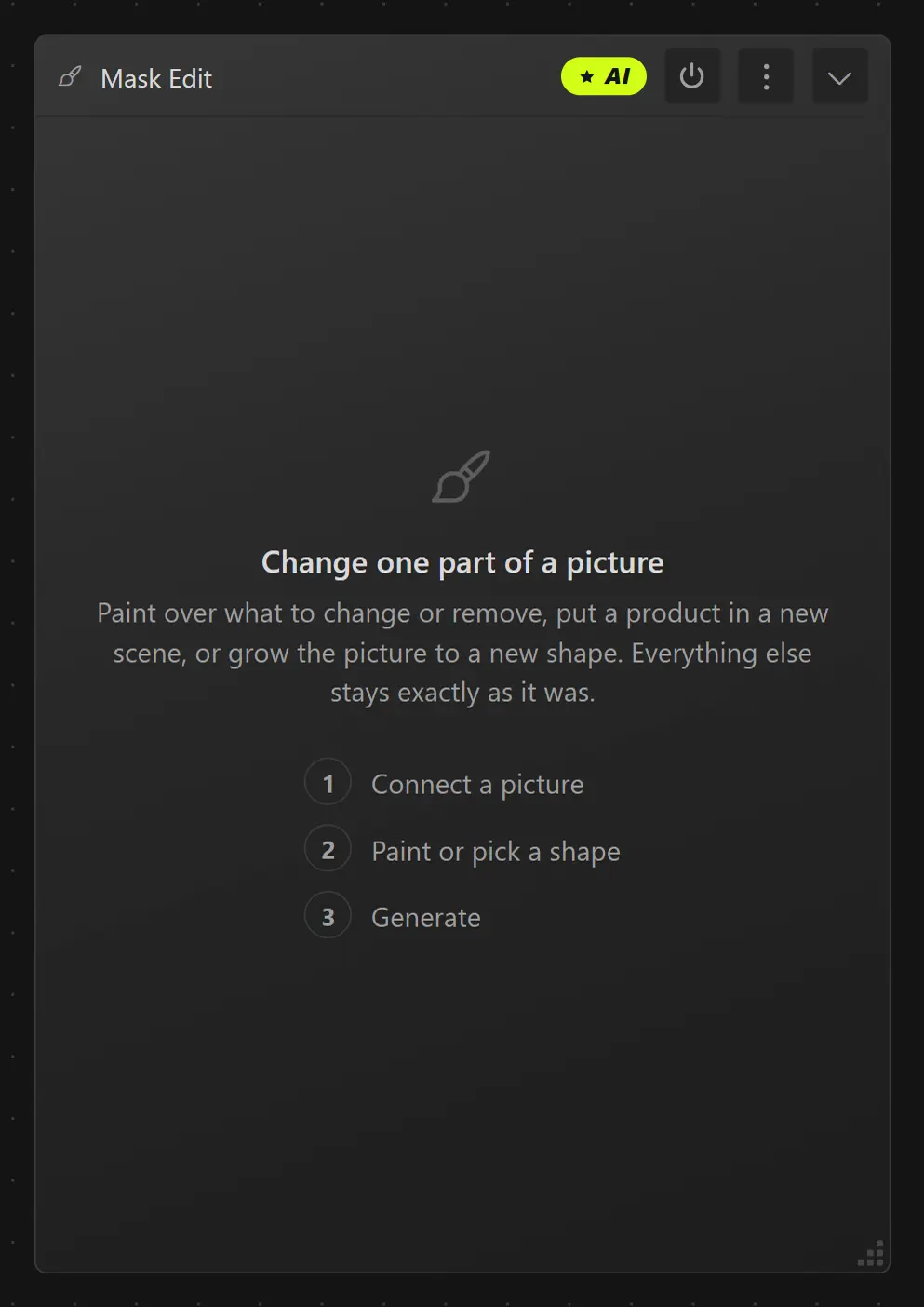
Mask EditUses credits
Changes one part of a picture, puts a product into a new scene, or grows the picture to a new shape. Everything else stays untouched.
Where AI Tools › Image Editing, or search “mask edit”.
- Connect an Image node to Picture.
- Choose Change part, Background or Expand.
- Change part: click Paint area, paint over what should change, then describe what goes there. Leave it empty to remove it.
- Click Generate. The button shows the price.
- Compare Before and After, then click Save.
- Painter: brush, erase, box, ellipse and lasso, with hard or soft edges
- Backgrounds: marble, wood, kitchen, bathroom, podium, colour, outdoors, festive
- Expand to 1:1, 4:5, 9:16, 16:9 or zoom out
Tip Only the painted area changes; the rest keeps the original pixels. Failed runs are refunded.
RelightUses credits
Relights a photo the way a studio photographer would.
Where AI Tools › Image Editing, the node dock, or search “relight”.
- Connect a photo to Image.
- Choose Keep it, add mine, or Replace it.
- Pick a look, such as Classic studio, Rembrandt, Golden hour or Clean product.
- Choose Light only, or Light and mood.
- Optional: click Adjust lights in 3D to move the lights around the photo.
- Click Generate and compare Before and After.
Tip The Lighting Setup output lets you reuse the same lights on another photo.
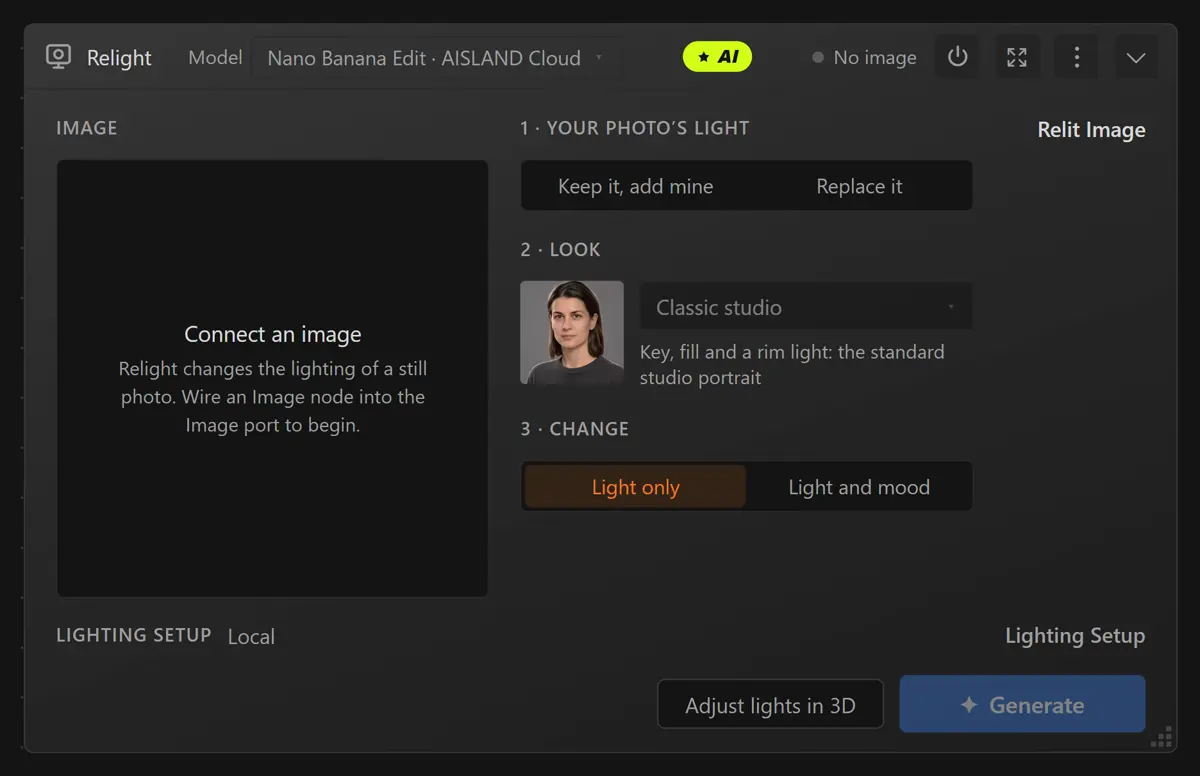
Image UpscaleUses credits
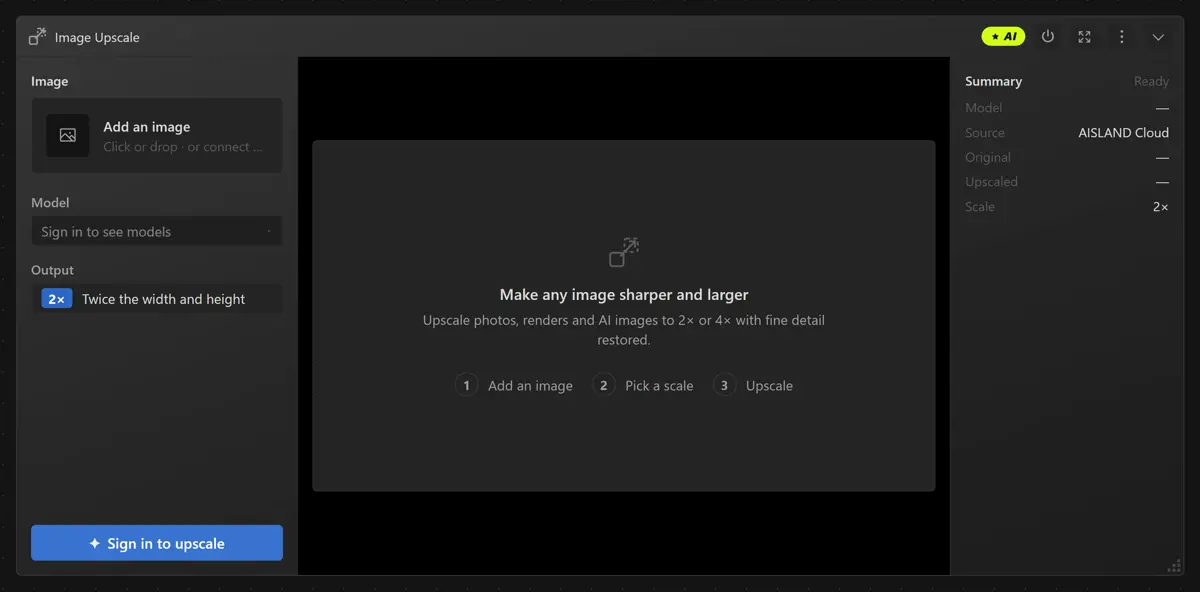
Makes a picture twice as large and sharper.
Where AI Tools › Image Editing, or search “upscale”.
- Connect an Image node, or click Add an image.
- Choose a Model. Output shows the new size.
- Click Upscale, then drag the slider to compare Before and After.
Tip Use a PNG, JPEG or WebP up to 10 MB.
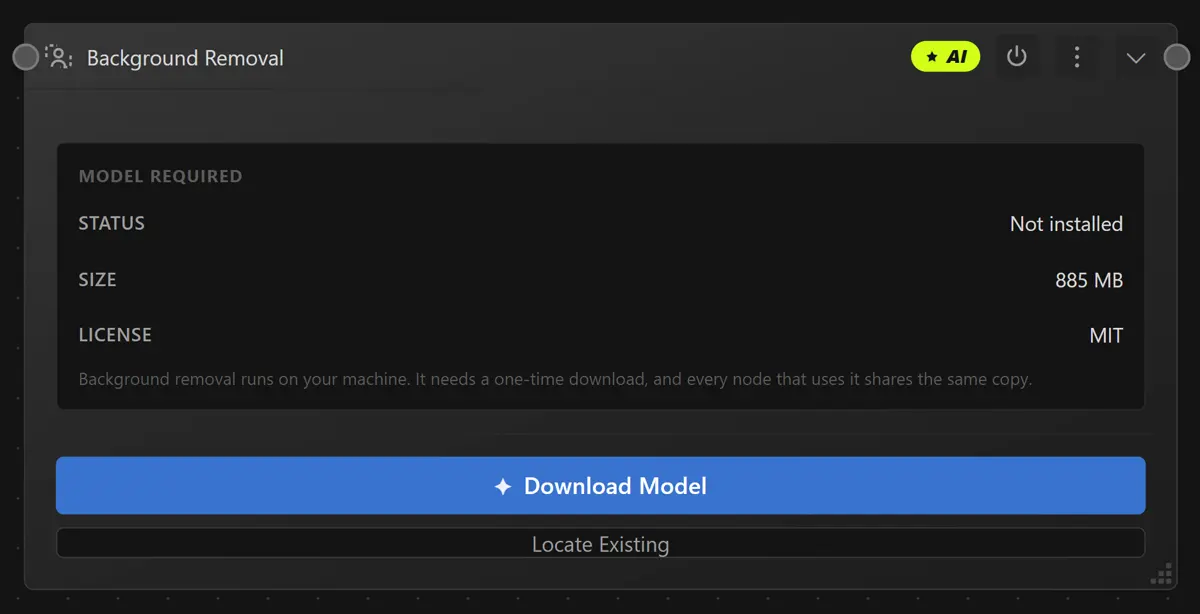
Background RemovalFree, on your computer
Cuts the subject out of a photo, on your computer.
Where Utility Tools, or search “background removal”.
- Connect an image.
- The first time, download the model once.
- Run it and save the cut-out.
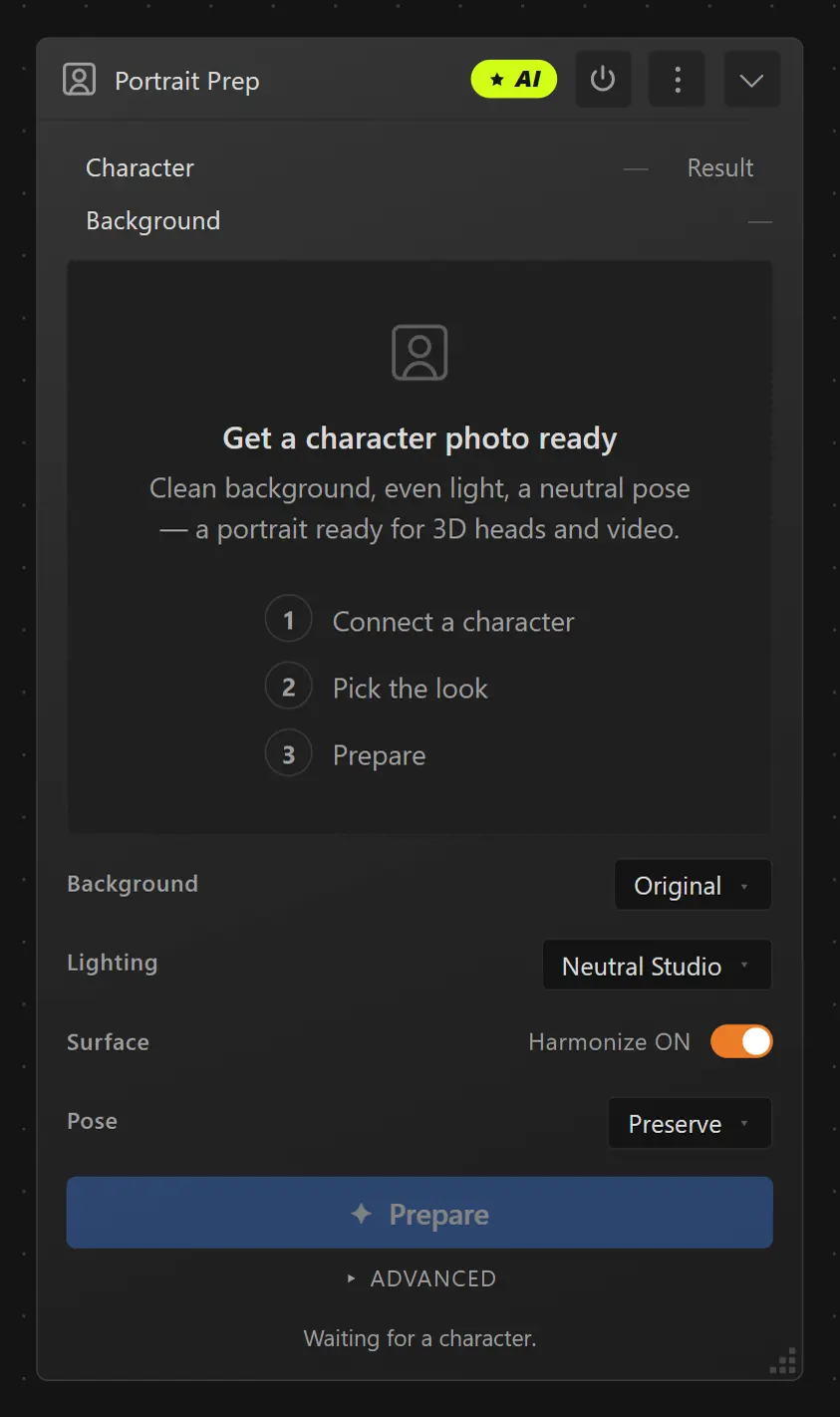
Portrait PrepFree, on your computer
Gets a character portrait ready for generating: a clean background and even studio light, while the face, hair, clothes and style stay the same.
Where AI Tools › Image Editing, or search “Portrait Prep”.
- Connect your portrait to Character.
- Choose the Background: Original, Color, Image or Transparent.
- Choose the Lighting and turn Harmonize on or off.
- Click Prepare.
- Portrait PrepBETA
Tip It runs on your computer with the background-removal model. Pose Normalize is not available yet.
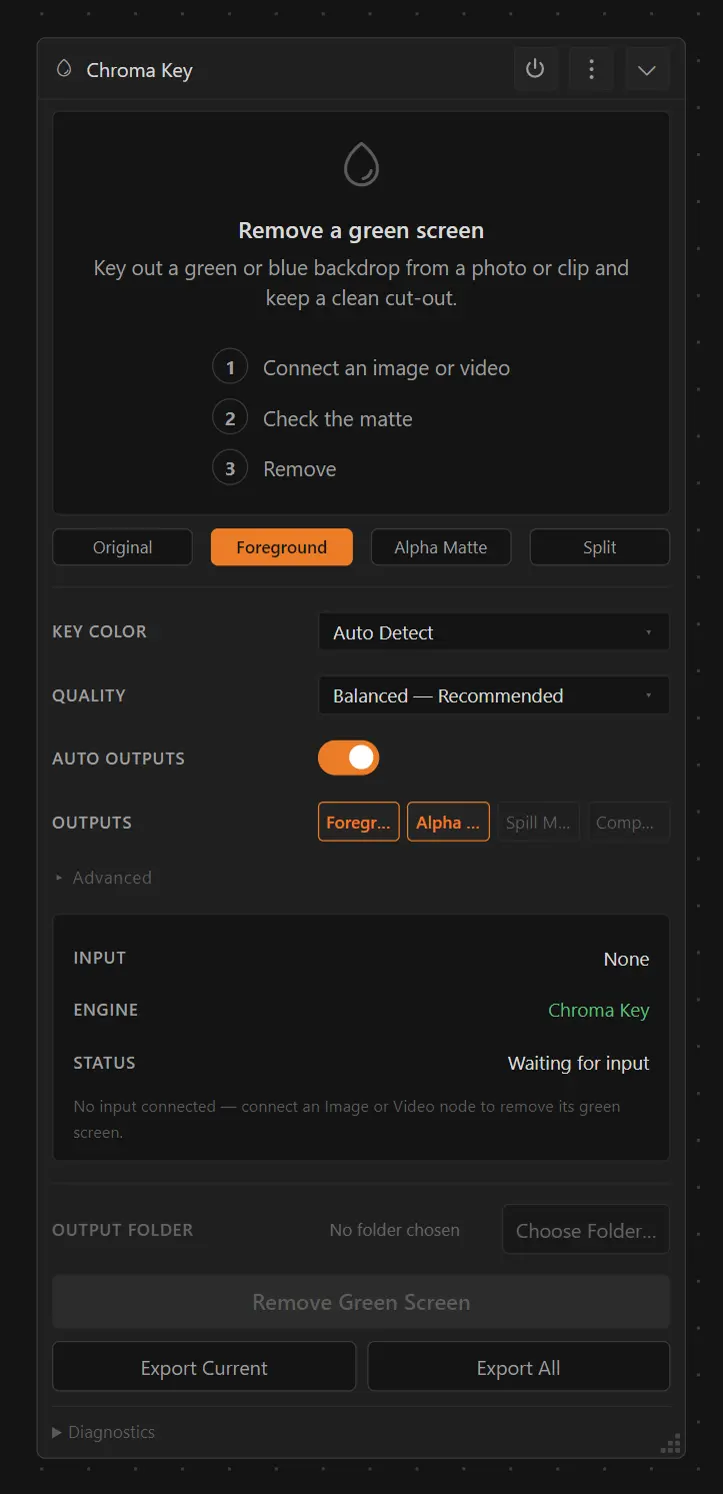
Chroma KeyFree, on your computer
Removes a green or blue screen from images or video. Built in, with nothing to install and no graphics card needed.
Where Search “Chroma Key”.
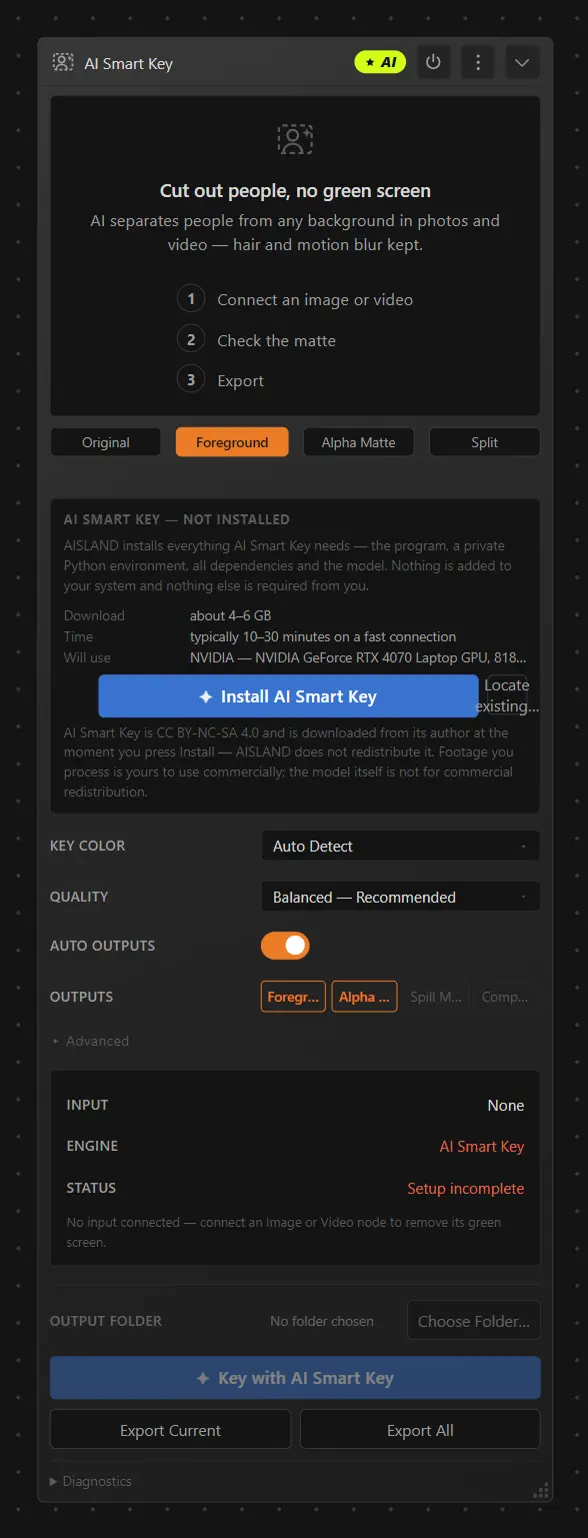
AI Smart KeyFree, on your computer
Keys a shot without a green screen, with clean hair and soft edges. A one-time download of 2 to 6 GB, then it runs on your computer.
Where Search “smart key” or “chroma key”.