Building-block nodes
The everyday nodes that bring files in, hold text, combine results and save them out.
PromptFree and paid parts
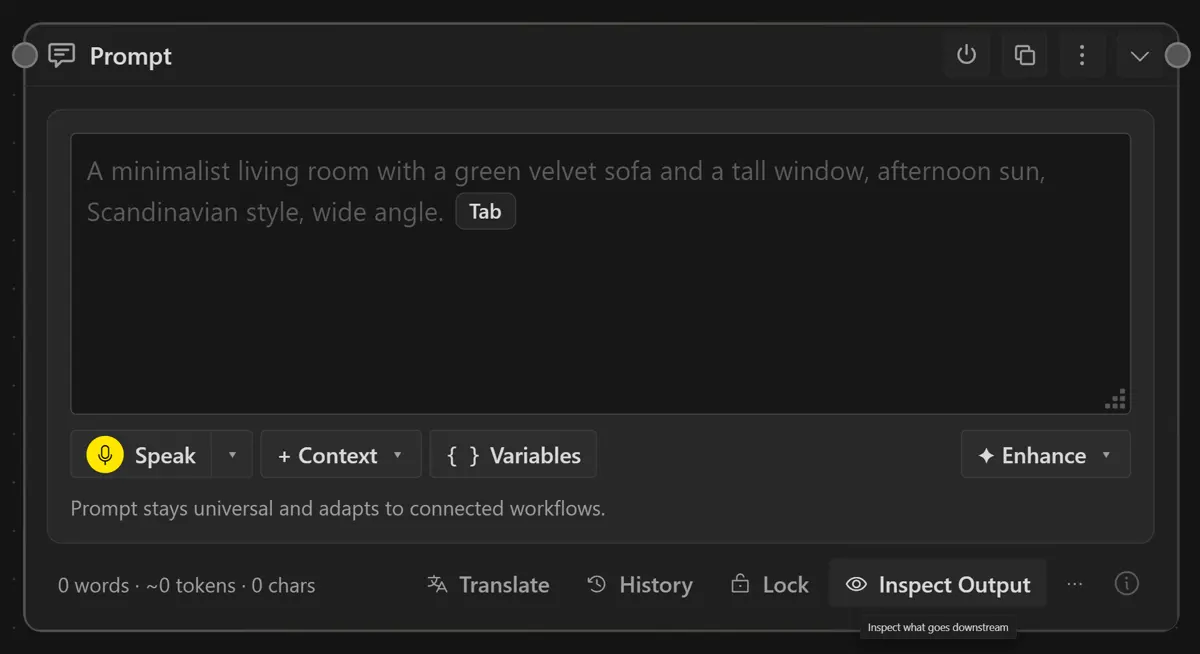
Holds the words you write for an AI tool, so you can reuse them across many nodes.
Where Press Space and search “Prompt”, or the Node Dock.
- Type in the box, or press Tab to use the grey example text.
- Click + Context to attach an image, document or another node as extra context.
- Click Variables to add a {{name}} with a value or a node as its source.
- Click Enhance and pick a tool, such as Improve, Expand or More descriptive. Check the preview, then Accept or Discard.
- Connect the Text output to Image Generation, Video Generation or another AI tool.
- Speak: dictate into the prompt, with a spoken-language choice
- More: translate, find and replace, copy, checkpoint a version
- Version history keeps up to 30 versions
Tip Writing is free. Enhance and Translate use an online AI model. Enhance never changes your prompt until you accept it.
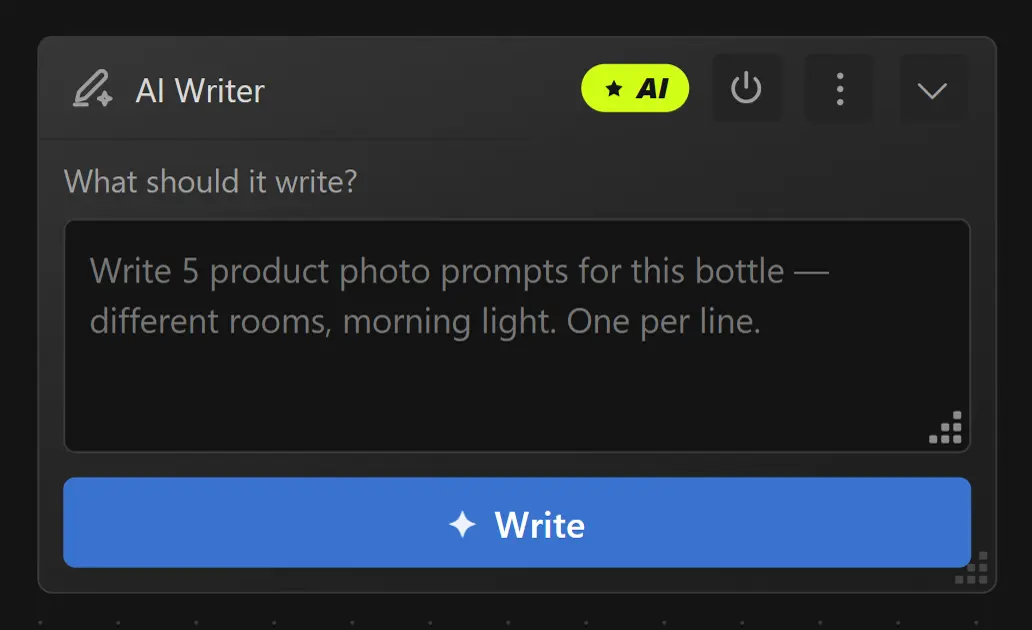
AI WriterUses credits
Writes text from your brief, reading any text and pictures you connect.
Where AI Tools › Prompt, or search “AI Writer”.
- Type your brief in What should it write?, for example “Write 5 product photo prompts for this bottle, one per line”.
- Optional: connect text or a picture to Read.
- Click Write. Edit the result if you like, then Write again or Copy.
Tip Connect its output to a Batch node to run one prompt per line through Image Generation.
Text, Notepad and StickyFree, on your computer
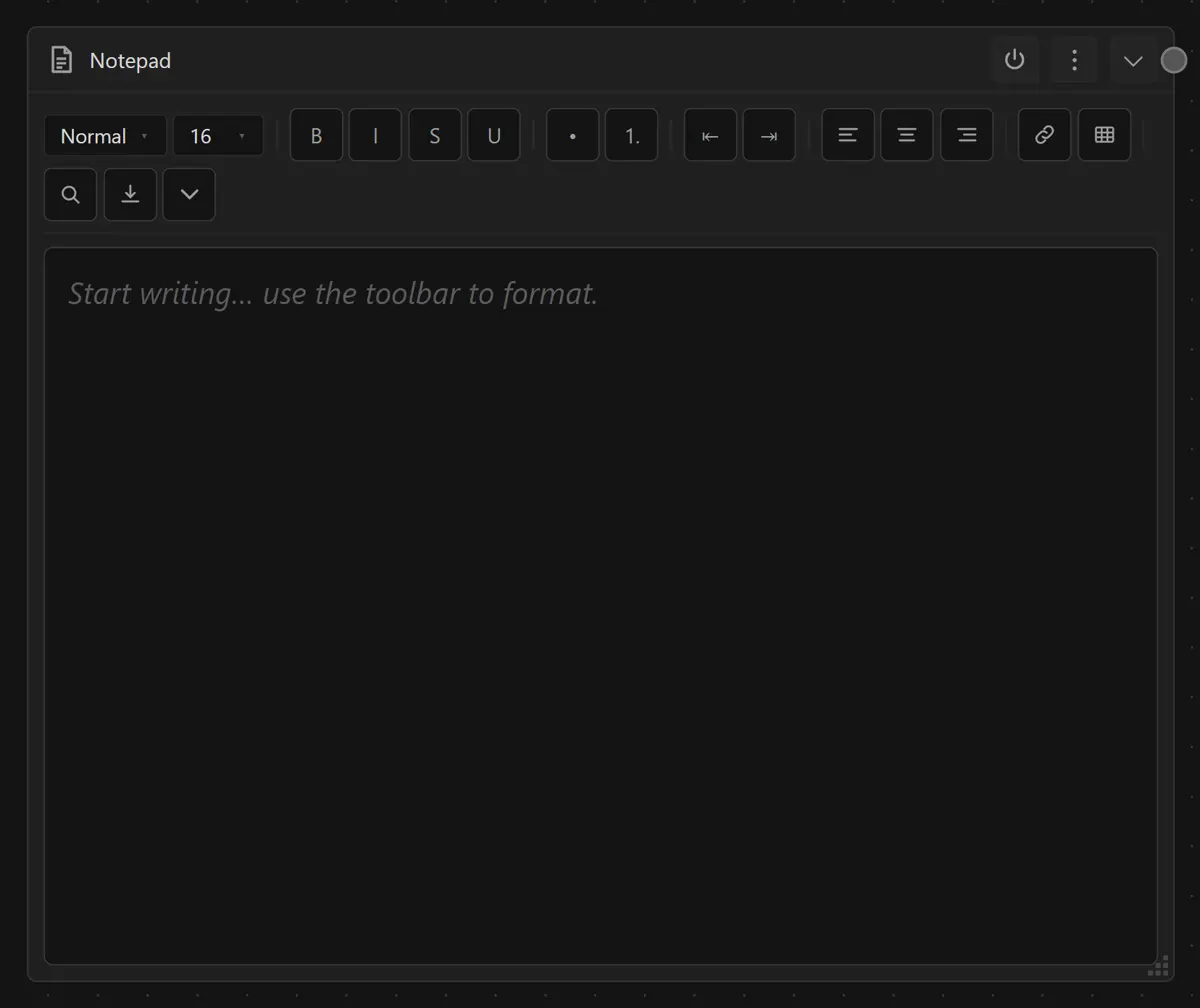
Text holds a piece of text or shows what other nodes send it. Notepad is a large formatted note you can export as PDF, Markdown, RTF, text or HTML. Sticky is a small coloured note pinned to the canvas.
Where Search “Text”, “Notepad” or “Sticky”. Dropping a .txt, .md or .csv file makes a Notepad.
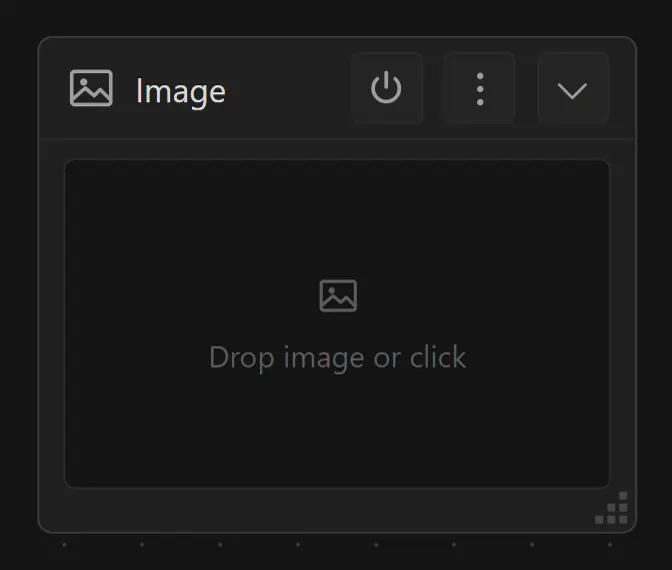
Image, Video, Audio, Model and DocumentFree, on your computer
Bring files into your project. Drop a file anywhere on the canvas and the right node appears, or add one and drop the file on it.
- Image: PNG, JPG, WebP, GIF, SVG, TIFF, EXR, HDR, PSD and more. Rotate, flip and scale it; several pictures dropped together share one card
- Video: plays MP4, WebM, M4V, OGV and most MOV files. Other formats come in but need Video Convert to play
- Audio: shows a waveform and player, with details such as sample rate and channels
- Model: GLB, GLTF, FBX, OBJ, STL, USD and USDZ, with a preview and Add to 3D Scene
- Document: PDF and HTML, with a page view. Connect it to Idea to Story, Extract Text or Translate
ExportFree, on your computer
Saves the connected picture, video, sound, text or document as a file.
Where Search “Export” (also “save”, “png”, “mp4”).
- Connect a node to Media.
- Pick a Format. Only the formats that fit what you connected are shown.
- Choose Ask every time, or Choose folder to save straight into one folder.
- Click Export.
- Image: PNG, JPG, WebP
- Video: MP4, WebM, MOV, GIF
- Audio: MP3, WAV
- Text: TXT, MD
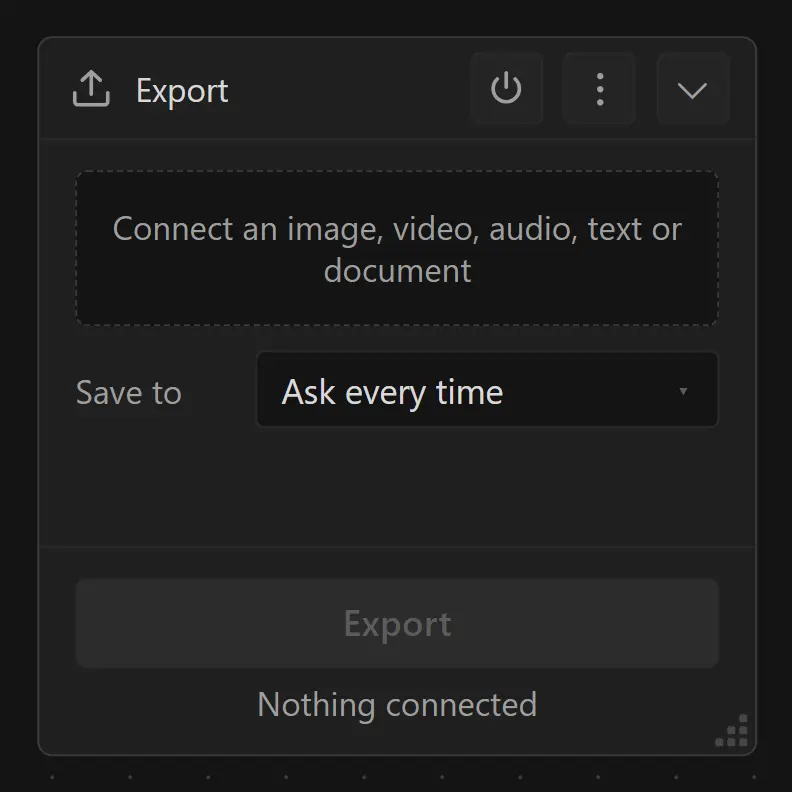
Image AdjustFree, on your computer
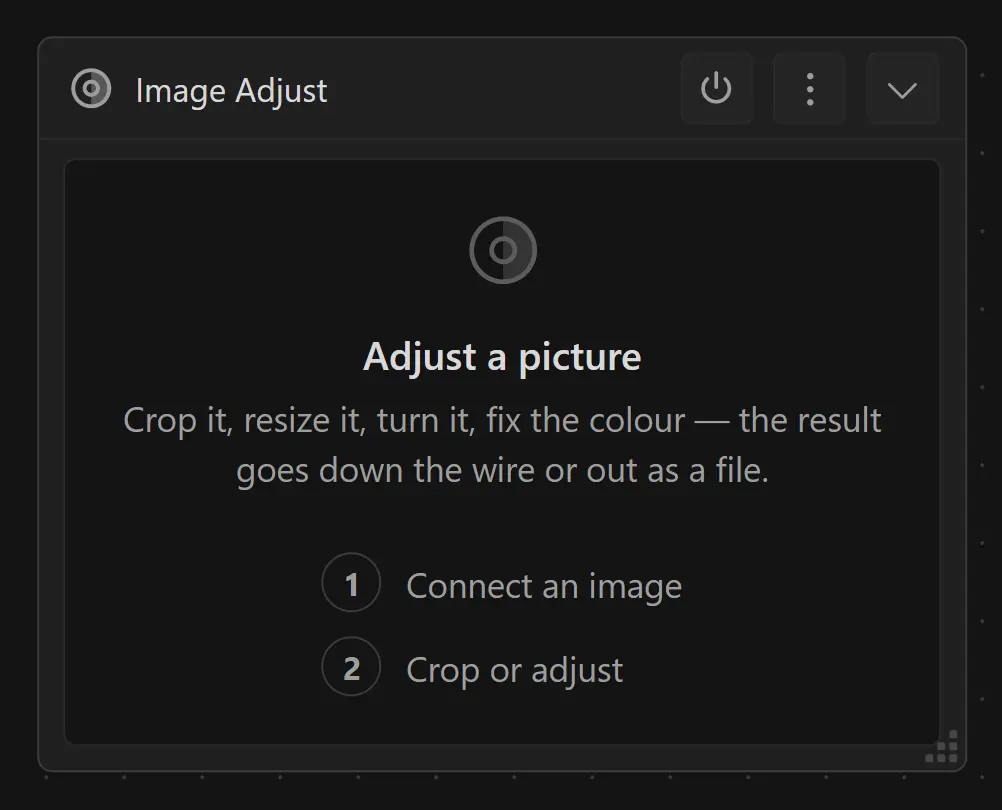
Crops, resizes, turns and colour-corrects a picture, on your computer.
Where Search “Image Adjust” (also “crop”, “resize”, “brightness”).
- Connect a picture.
- Pick a tool: Crop, Size, Rotate, Colour or Effects.
- Hold Original to compare with the picture before your changes.
- Click Save, or connect the Image output to the next node. Reset undoes every change.
BatchUses credits
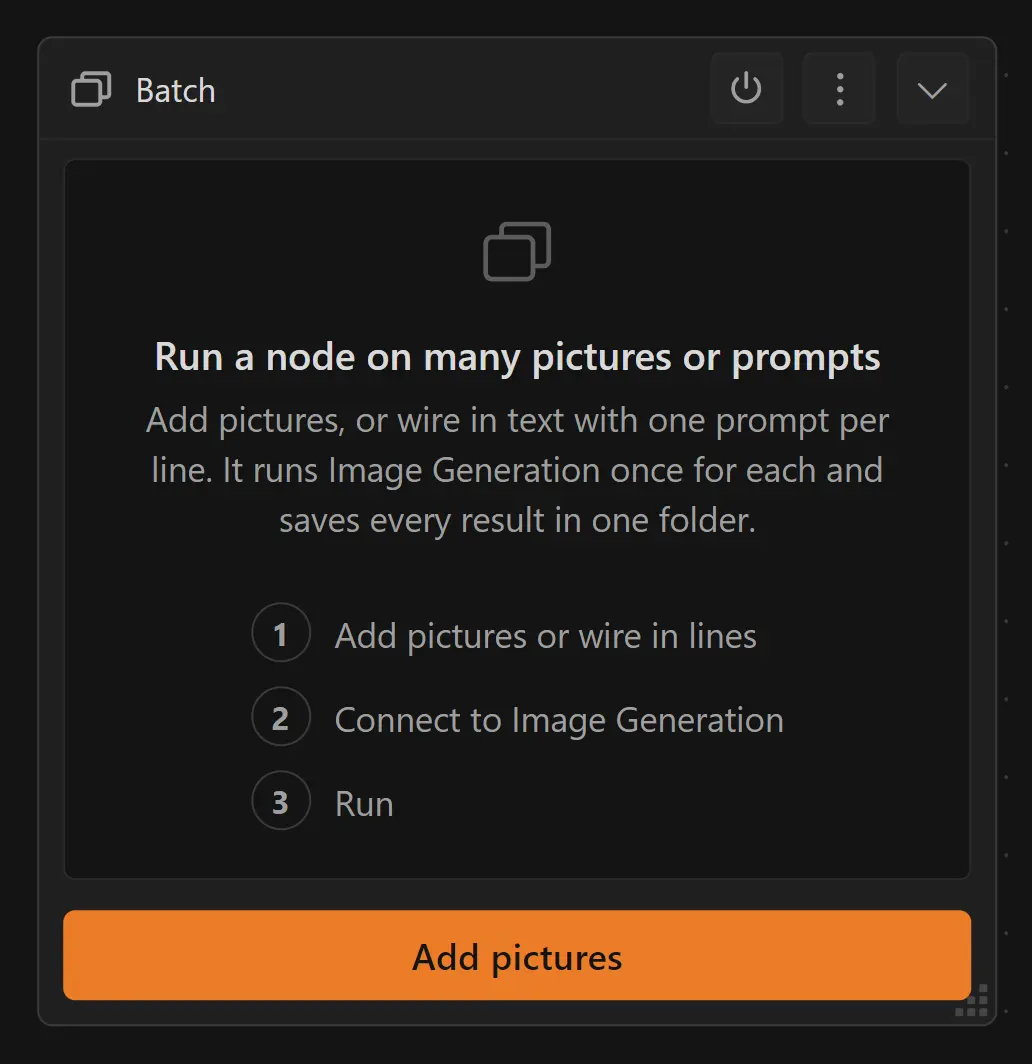
Runs an Image Generation node once for each picture or each line of text, and saves every result in one folder.
Where Search “Batch”.
- Click Add pictures, or connect text with one prompt per line.
- Connect Batch to an Image Generation node.
- Click Run. The first time, choose the folder to save into.
- Click Open to see the folder. Use Retry for any that failed.
Tip Results are never overwritten. If the first one is refused, the batch stops so the rest are not wasted.
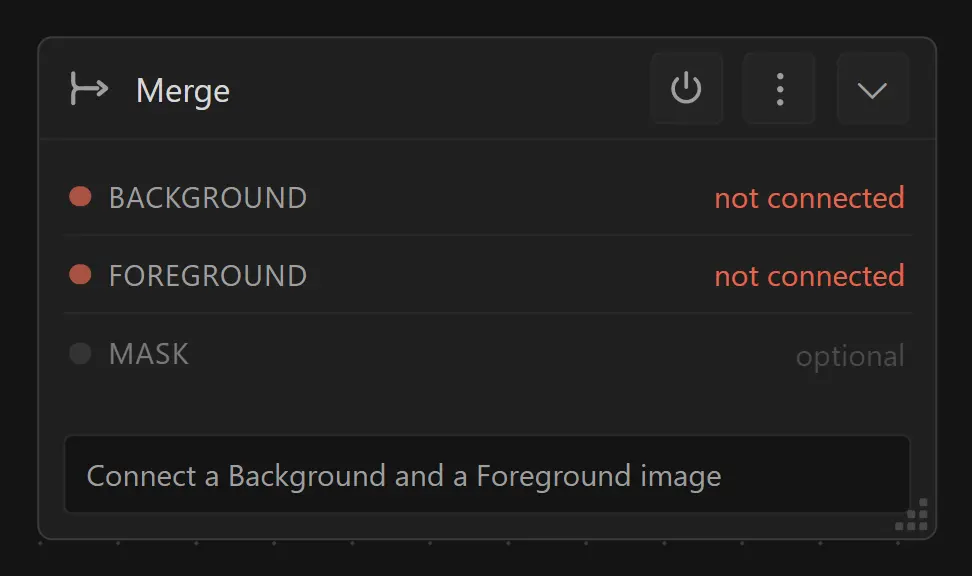
MergeFree, on your computer
Puts one picture on top of another, with blend modes, opacity and an optional mask.
Where Search “Merge”.
- Connect a Background and a Foreground picture.
- Pick the operator and blend mode, and set the opacity.
- Optional: connect a Mask. Swap FG / BG switches the two.
ViewFree, on your computer
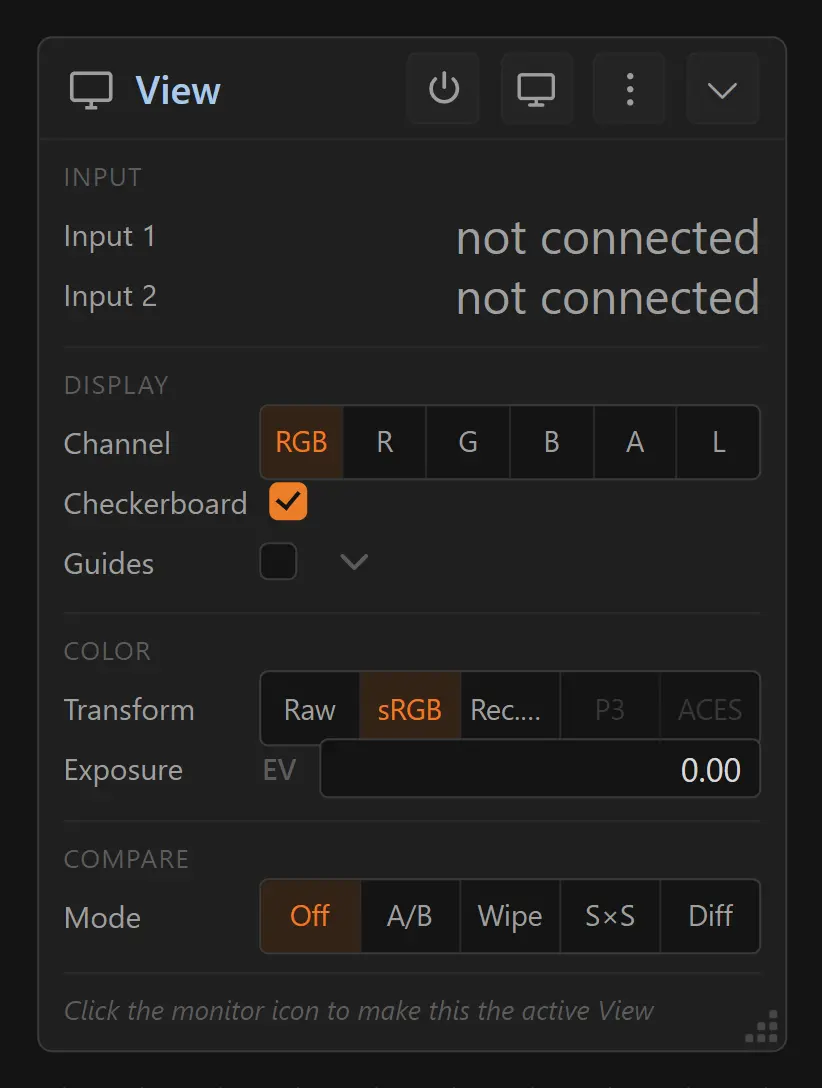
Shows a node's result in the 2D Scene viewer, or compares two results with A / B, Wipe, Side by Side or Difference.
Where Search “View” (also “compare”, “before after”).
- Connect a node to Input 1.
- Click the monitor icon to show it in the 2D Scene.
- To compare, connect a second node and pick a Compare mode.
MathFree, on your computer
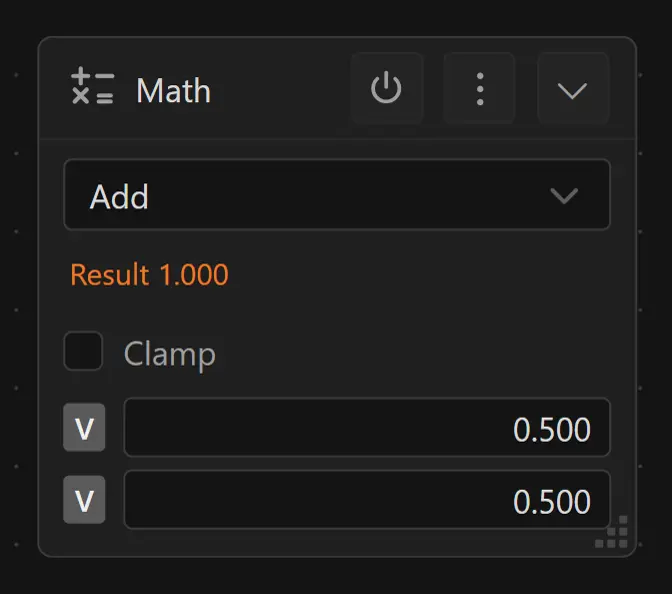
Combines numbers with an operation such as add, multiply, power, round or convert to degrees.
Where Search “Math”.
CameraFree, on your computer
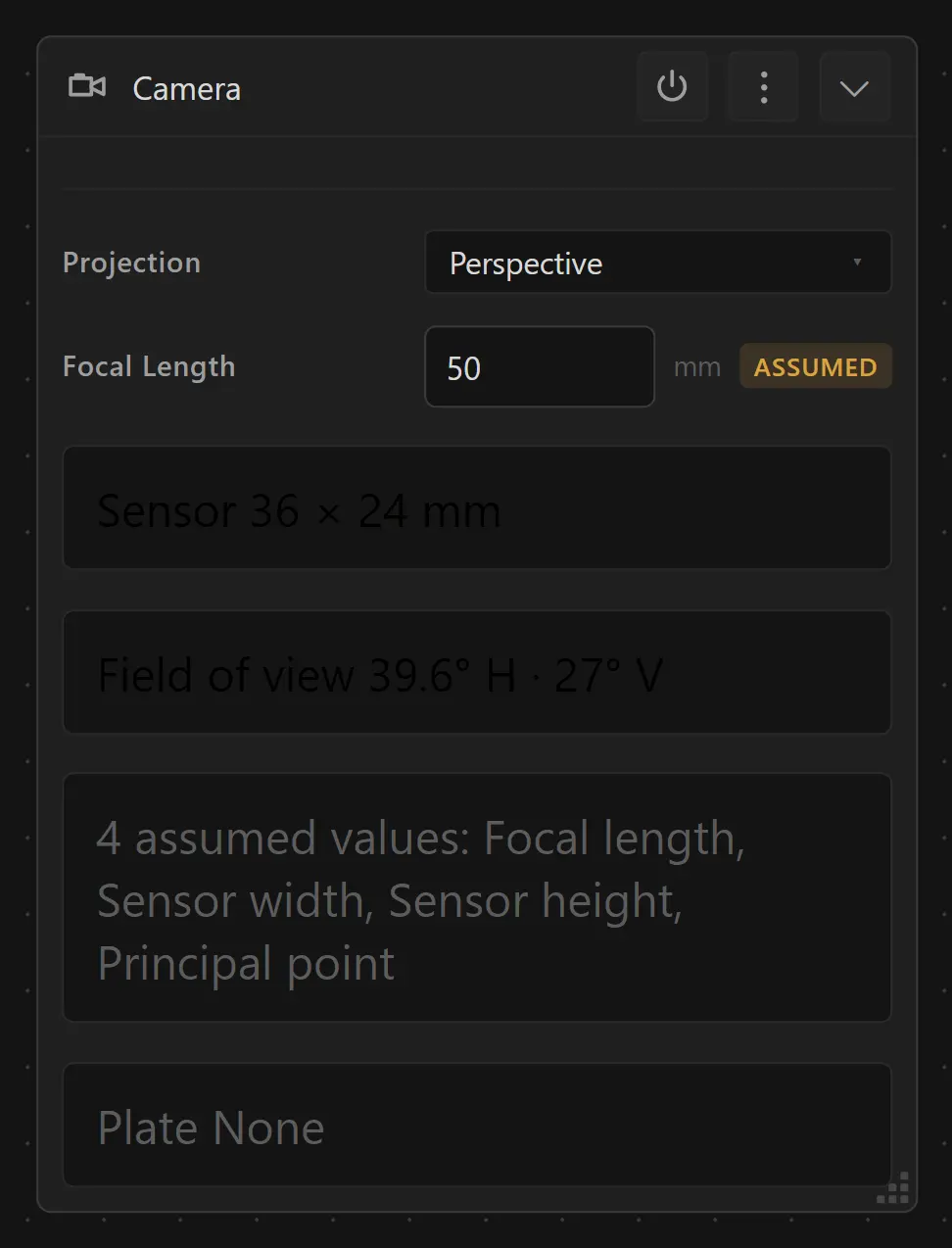
A scene camera with perspective or orthographic projection and a focal length. Each value shows whether it is known, estimated or assumed.
Where Search “Camera”, or the Node Dock.
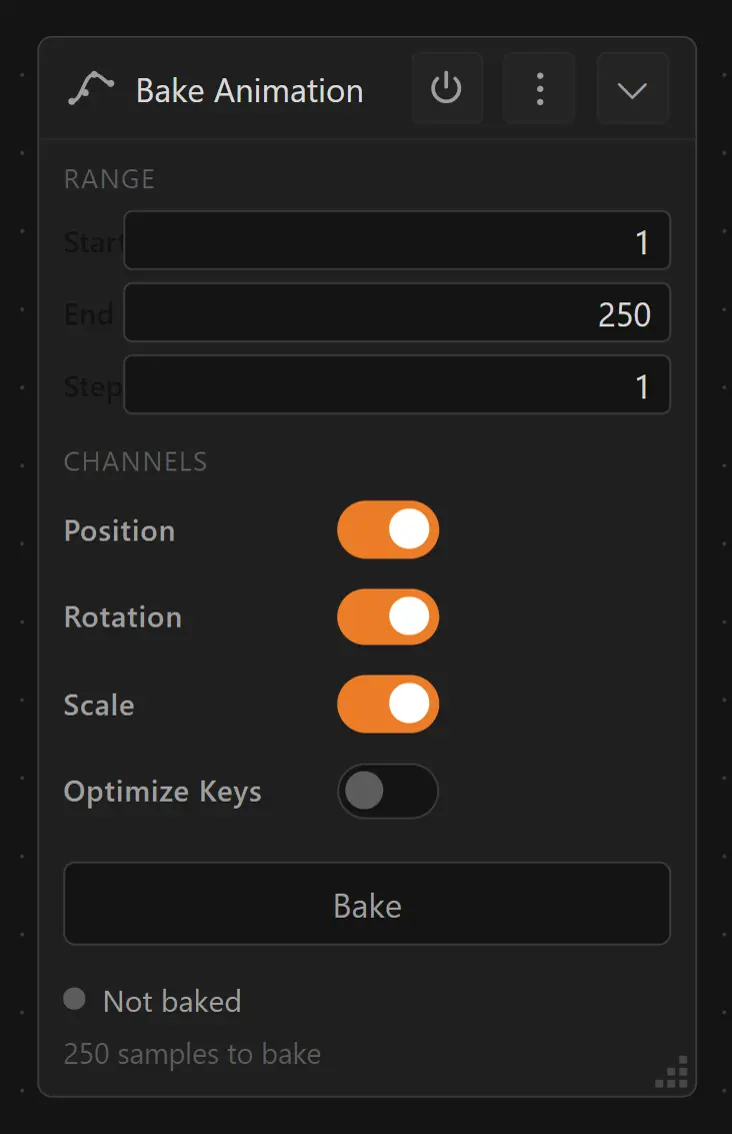
Bake AnimationFree, on your computer
Records a moving object's or camera's motion into fixed keys, so it plays the same every time.
Where Search “Bake Animation”.
- Put it after the animated model or camera.
- Set the frame range and step, and choose position, rotation and scale.
- Click Bake. Use Re-Bake after the animation changes, or Clear to go back to live motion.