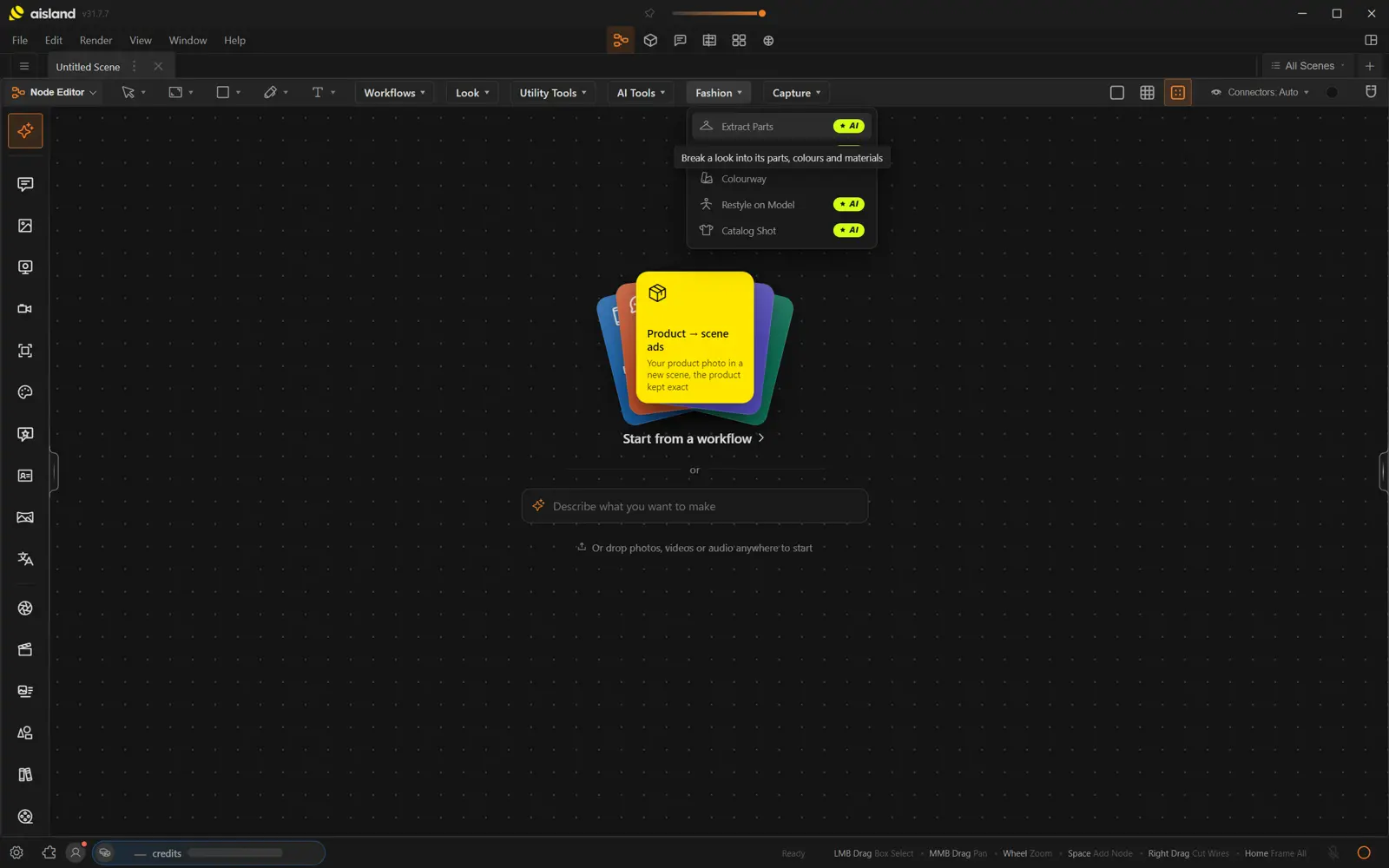
Fashion and products
From one look or one product to a full set of shop-ready pictures.
How the fashion tools fit together
Start with Extract Parts to split a look into garments. Change a part with Variation or Colourway, dress a model with Restyle on Model, then make shop photos with Catalog Shot. All five are in the Fashion menu on the canvas toolbar.
Extract PartsFree and paid parts
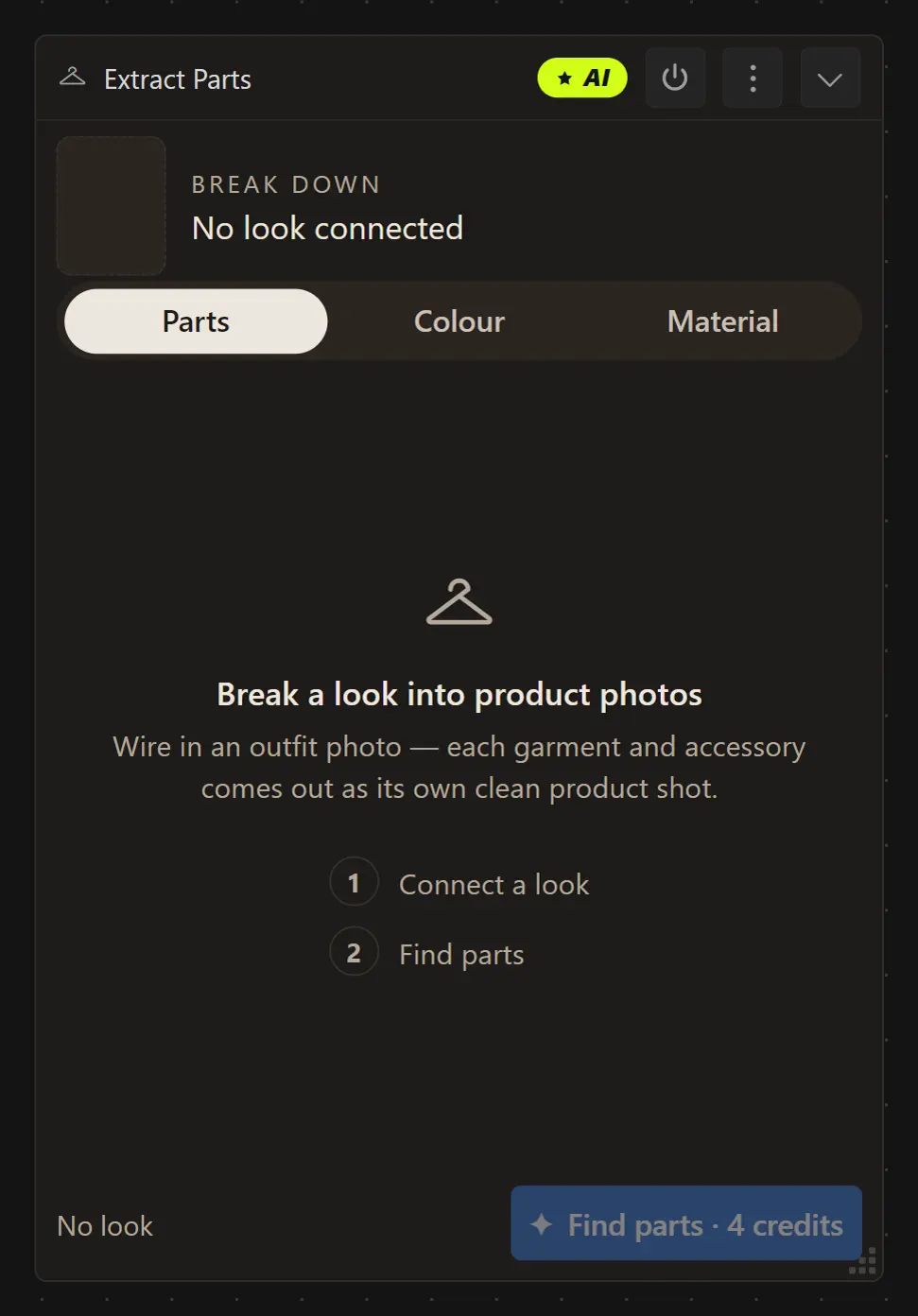
Turns a photo of an outfit into a clean product photo of each garment and accessory, with its colours and materials.
Where Fashion menu, or search “Extract Parts”.
- Connect a photo of the outfit to Look.
- Click Find parts. Untick what you don't want, or type a part it missed.
- Click Extract. All the ticked parts come back on one sheet, cut into separate pictures.
- Click a part to send it on. Use HD for full size, or + Canvas to place it as its own node.
Tip The Colour tab is measured on your computer for free. One sheet costs the same however many parts you tick. Failed runs are refunded.
VariationUses credits
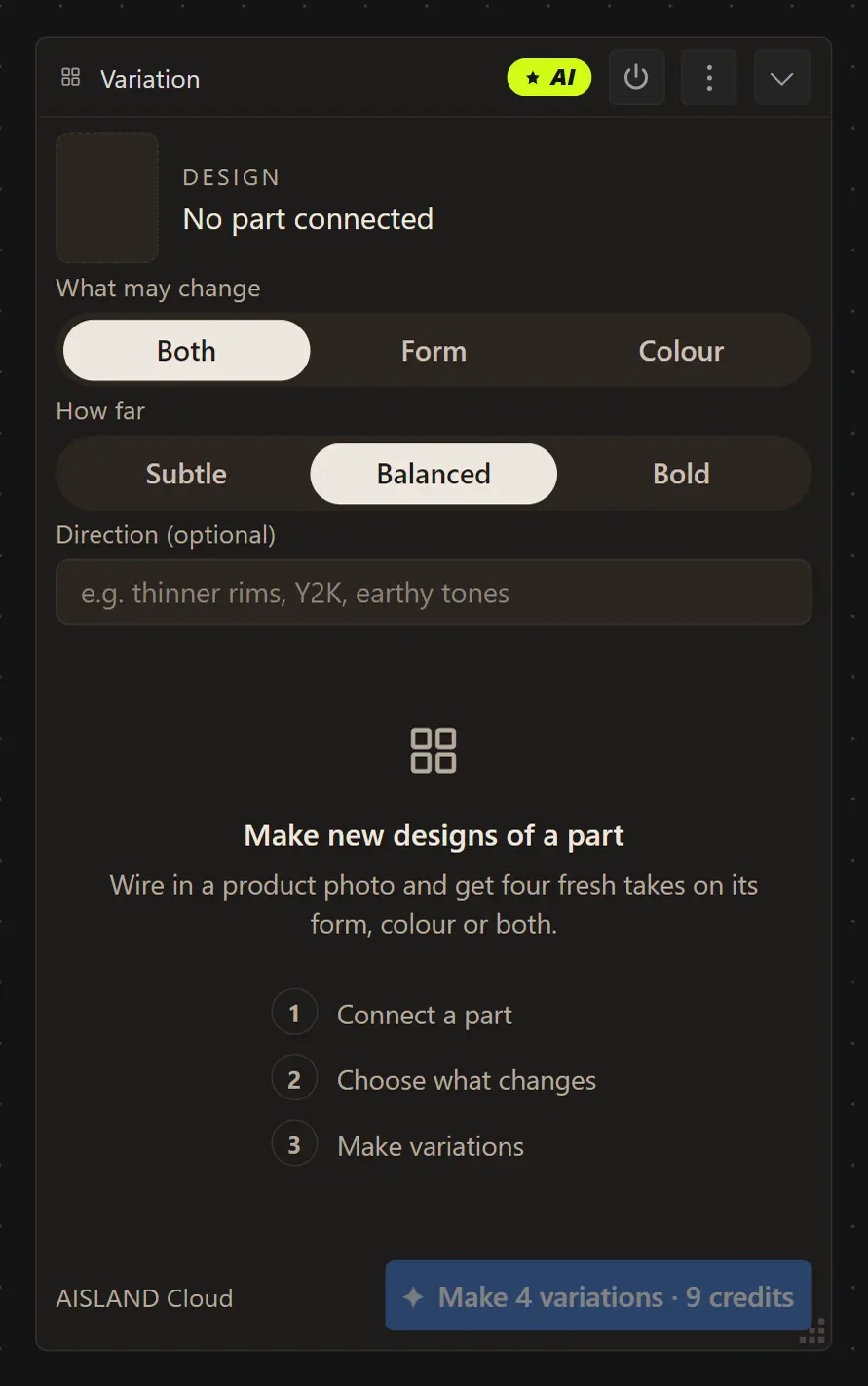
Four new designs of one product or garment: a new shape, a new colour, or both.
Where Fashion menu, or search “Variation”.
- Connect a product picture to Part.
- Choose What may change (Both, Form or Colour) and How far (Subtle, Balanced or Bold).
- Optionally type a direction, such as “thinner rims, earthy tones”.
- Click Make 4 variations. Each press adds four more.
ColourwayFree, on your computer
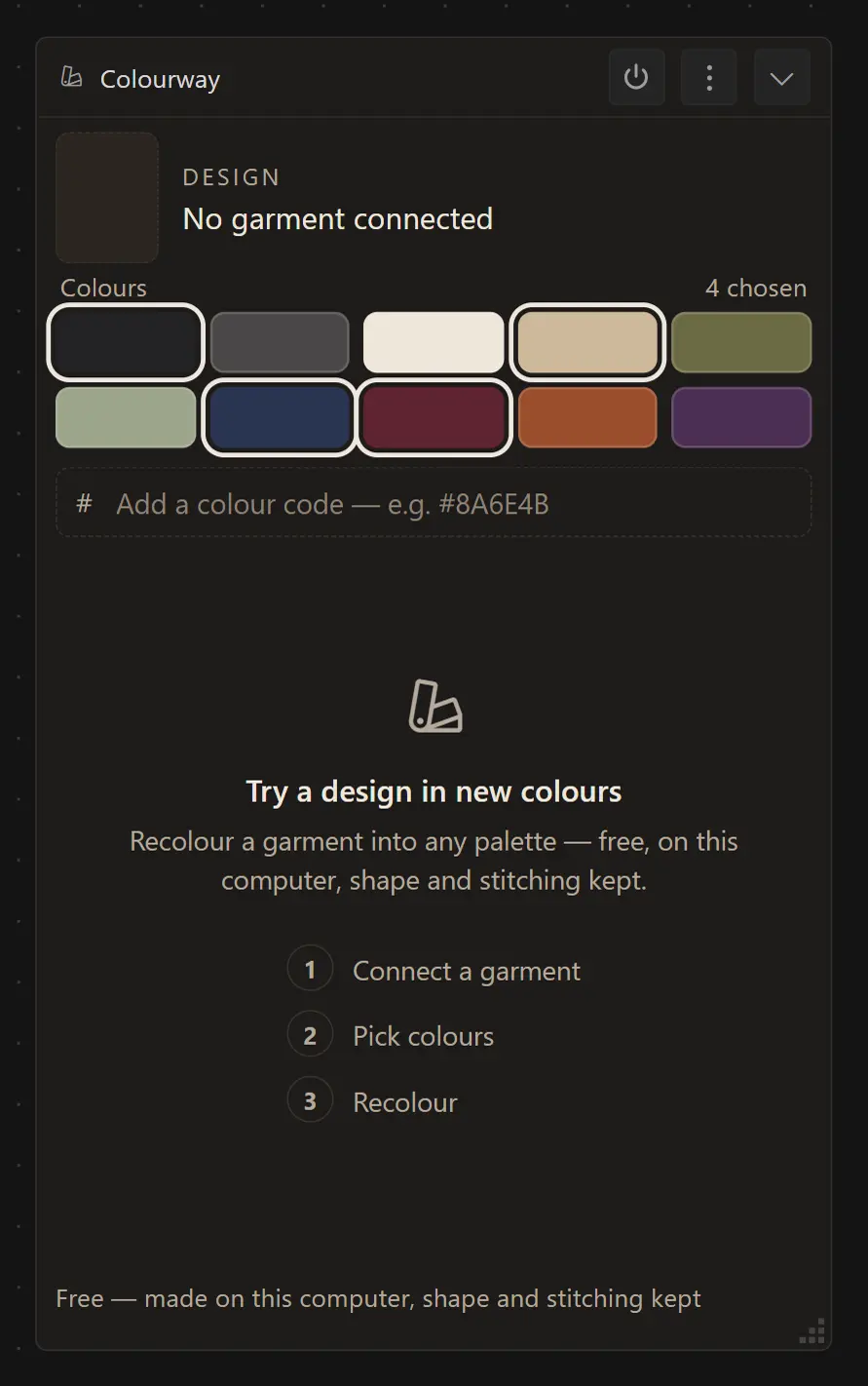
The same garment in the colours you pick. The shape, folds and stitching stay exactly the same.
Where Fashion menu, or search “Colourway”.
- Connect a garment picture, ideally on a plain background.
- Click colour swatches, or type your own colour code such as #8A6E4B.
- Click a result to send it on.
Tip It runs on your computer, with no AI and no credits. Prints and two-tone pieces take one colour.
Restyle on ModelUses credits
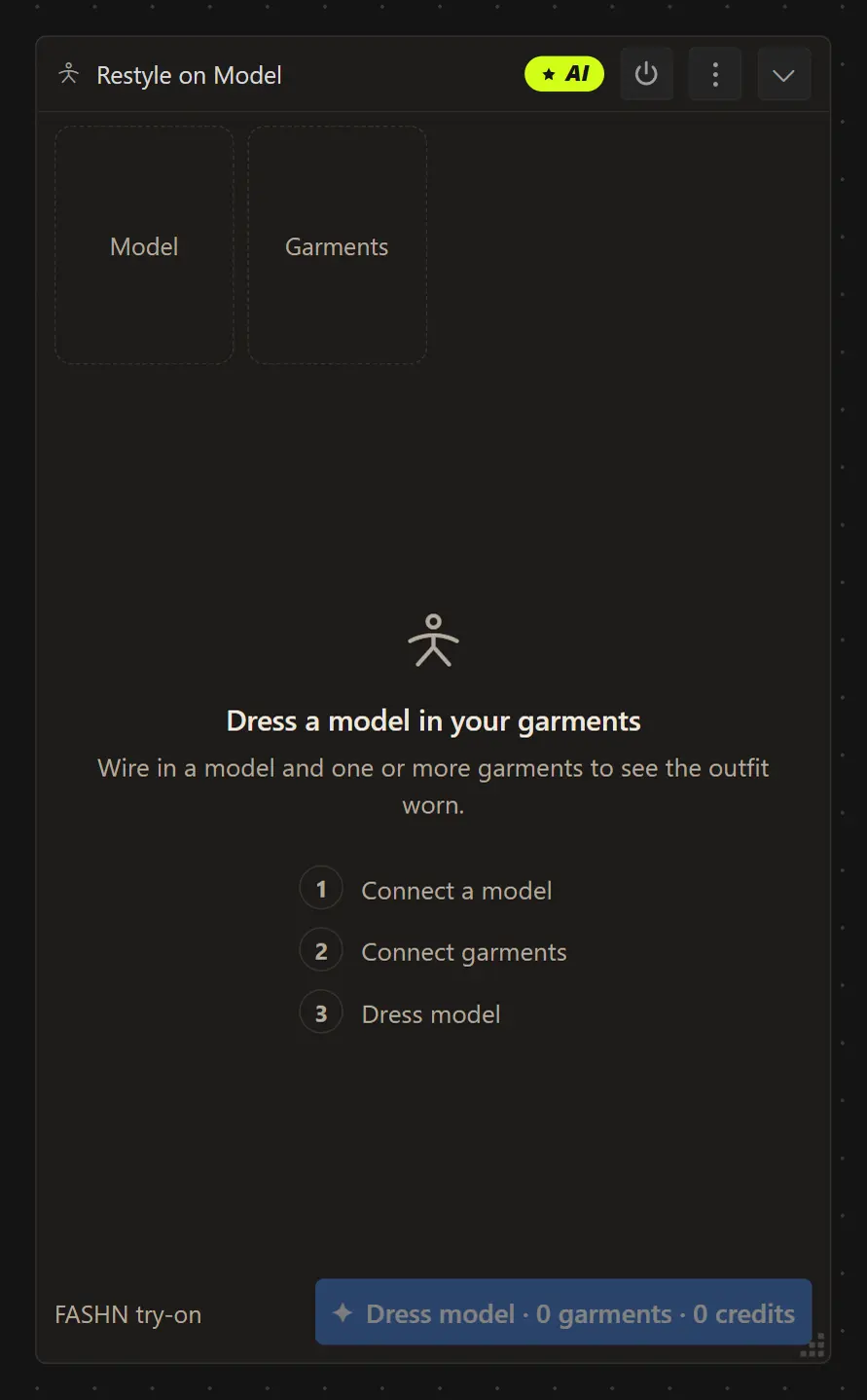
Dresses a model photo in the garments you connect.
Where Fashion menu, or search “Restyle”.
- Connect a model photo to Model.
- Connect each garment to Garments.
- Click Dress model. The button shows the total credits.
- Click any step in the strip to send that stage of the look on.
Tip Only clothing is dressed. Shoes, bags, glasses and jewellery are listed as not dressed and cost nothing.
Catalog ShotUses credits
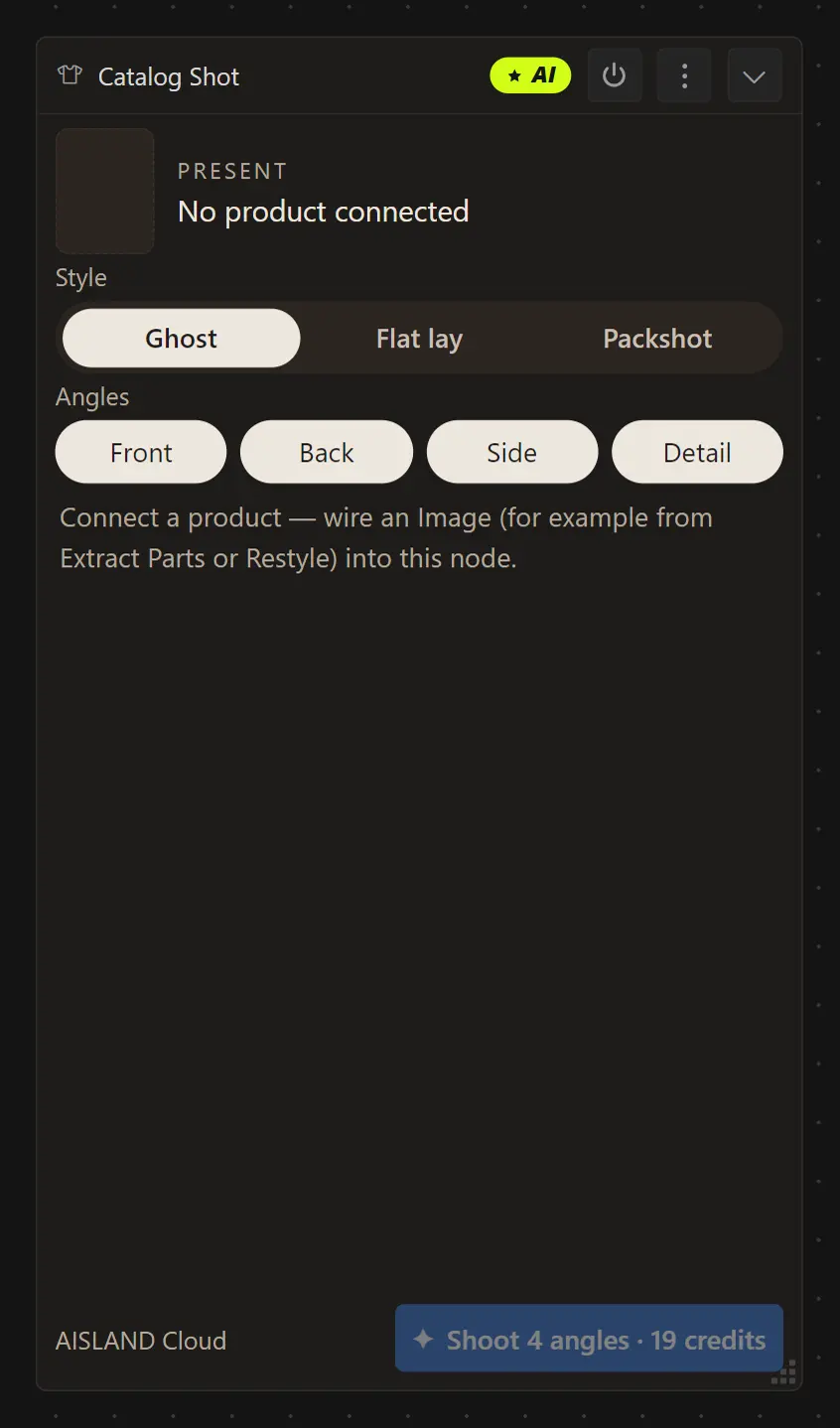
Shop-ready photos on white: ghost mannequin, flat lay or packshot, from several angles.
Where Fashion menu, or search “Catalog”.
- Connect a product picture.
- Choose a Style and the Angles: Front, Back, Side, Detail.
- Click Shoot. One price covers every angle.
- Click HD only on the photos you will upload.